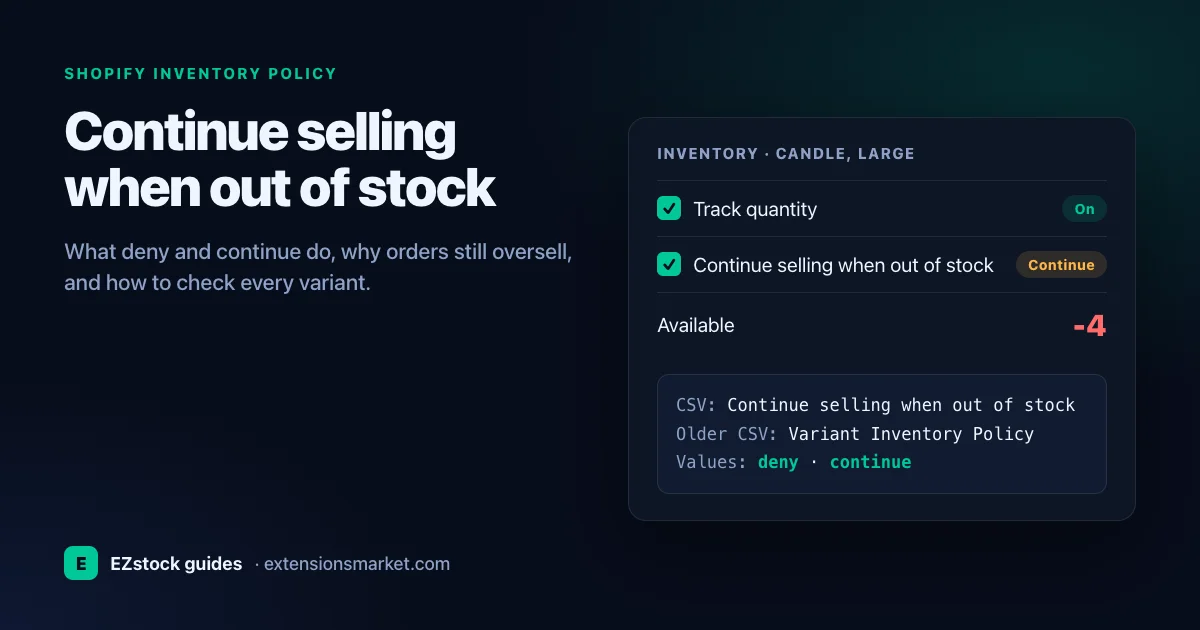
In one line: Continue selling when out of stock is a per-variant Shopify setting. Off (deny, the default), a tracked variant stops selling at zero. On (continue), customers can keep buying and stock goes below zero. Shopify POS and orders your staff create in the admin can still sell at zero with it off.
Key takeaways
- One setting, four names: the admin checkbox, the CSV column (Continue selling when out of stock, or Variant Inventory Policy in older files), the API value DENY or CONTINUE, and variant.inventory_policy in theme code.
- It only works with Track quantity on, and each variant has its own setting.
- Off doesn't block every sale at zero. Shopify says the setting doesn't apply to POS orders, and staff can add a sold-out item to a draft order.
- The admin has no filter for it. Export your products and filter the column, or add the column in the bulk editor.
- Stock below zero is orders you owe. Add those units to your next purchase order and tell the buyers when their items will ship.
What does "Continue selling when out of stock" do in Shopify?
Shopify's help center says an item is out of stock "when inventory is tracked and the inventory level is at zero or below." By default, customers can't buy it until you add more stock. Turn on Continue selling when out of stock for a variant and that block goes away: customers can keep ordering, and the stock count drops below zero.
Shopify's CSV guide describes the two choices plainly. With deny, "you don't allow the variant to be purchased after its inventory level reaches 0." With continue, "you allow the variant to be purchased after its inventory level reaches 0," and stock can show as a negative number. Deny is the default.
Two rules decide whether the setting does anything at all:
- Track quantity has to be on. In Shopify's words, "You can select the Continue selling when out of stock option only when you turn on the Inventory tracked setting." A variant with tracking off has no count to run out of, so it never stops selling.
- It's set per variant. A T-shirt can keep selling in Medium while Small sells out. The policy is a field on the variant itself. Locations don't get their own copy of it; they only hold the stock that gets counted.
Locations still matter for online orders. Shopify notes that when you have more than one active location, inventory is assigned to a location, and an item can show as out of stock online when the locations that fulfill online orders are at zero, even though another location has units. Shopify's advice for that case is to add stock to a location that fulfills online orders.
One setting, six places, four names
Search for help with this setting and you'll find it under different names. They all control the same switch. The table shows where each name appears and the values each one takes.
| Where you see it | Name | Values |
|---|---|---|
| Product page, Inventory section | Continue selling when out of stock | Ticked or not |
| Bulk editor | Continue selling when out of stock (a column) | On or off |
| Product CSV, current template | Continue selling when out of stock | deny or continue |
| Product CSV, older templates | Variant Inventory Policy | deny or continue |
| Admin API (GraphQL) | inventoryPolicy | DENY or CONTINUE |
| Theme code (Liquid) | variant.inventory_policy | deny or continue |
Shopify's developer docs define the API values the same way as the checkbox: CONTINUE means "customers can buy this product variant after it's out of stock," and DENY means they can't. The Liquid object used by themes describes continue as "continue selling when the variant is out of stock."
On the CSV side, Shopify's guide warns that "if you use an older CSV template, then you might have different column names," and says Shopify "maintains backward compatibility with older column names." So an older file with a Variant Inventory Policy column still imports. Get the values exactly right: use deny or continue. Our own Search Console data shows merchants looking up the import error "inventory policy is not included in the list," which points to a value outside those two. Our Shopify product CSV format guide covers the other columns, and fixing Shopify CSV import errors covers the rest of the error messages.
When should a variant keep selling at zero?
Shopify lists four reasons to let a product oversell: preorders, stock that's already on its way, selling before you order supplies, and not tracking real quantities in Shopify. Each of those has a date or a process behind it. When you can't say when the next units will arrive, leave the setting off.
| Situation | Setting | Why |
|---|---|---|
| You make each item after the order comes in | Continue | Zero stock is normal. The wait is your production time. |
| A purchase order is placed and the supplier confirmed a date | Continue, for now | You can promise a ship date. Switch it off if the date slips. |
| Bestseller from a supplier who ships in days | Continue, with a note | A short wait is fine when the buyer knows about it. |
| One-of-a-kind, vintage or limited edition | Deny | There's no next unit to sell. |
| Discontinued or seasonal item you won't reorder | Deny | Every oversold unit turns into a refund. |
| Long supplier lead time and no PO placed | Deny | The wait is too long and too uncertain to promise. |
Try this test on each variant: picture a customer emailing to ask when their order will ship. If you can answer with a date, continue selling can work. If you can't, the setting turns a stockout into a late order, and a late order often turns into a refund and a bad review.
Continue selling has no ceiling and no message. It doesn't hold back units from an incoming delivery, and it doesn't tell the buyer anything. A variant set to continue can sell 5 units below zero or 500, because nothing caps it. If you sell before ordering, place the purchase order the same day you switch the setting on. Our guide to supplier lead times and minimum order quantities helps you judge how long that wait is likely to be.
Is continue selling the same as a preorder?
No. Continue selling keeps the normal checkout open on a sold-out variant, with full payment at checkout and no extra message. Shopify's pre-orders are a separate purchase option, and the help center says "to display information about pre-orders, you must use a pre-order app."
Pre-orders come with their own rules. Shopify's setup guide describes partial deposits and due dates, says "pre-order products are only supported on the Online Store and Custom Storefront sales channels," and lists accelerated checkouts that can't be used for them, including Shop Pay, Apple Pay and Google Pay. Continue selling has none of those limits, and none of those features either.
Pick a pre-order app when you want the product page to say "pre-order", take a deposit, or charge the rest later. Use continue selling when the wait is short and you're happy to charge in full now. Either way, Shopify's guide sets the same bar: "You must have a reasonable basis for saying that a product can be shipped within a certain time."
Why do orders still oversell when the setting is off?
Deny blocks the online checkout, but Shopify's own docs describe ways around it. "Continue selling when out of stock doesn't apply to orders placed from Shopify POS," and staff can add a sold-out product to a draft order. Apps that edit your products can switch the setting back on, and a variant with tracking off never sells out at all.
Point of sale
At the register, POS warns staff before they sell an item that isn't available, and staff can still go ahead with the sale. For a shop with a counter, that's usually what you want: the item is in the customer's hand. It also means a counting error in Shopify can show up as stock below zero after a busy weekend. Our guide to the Shopify inventory audit shows how to count stock and bring Shopify back in line.
Draft orders and orders made in the admin
Shopify's draft order page is direct about it: "You can still add the product to the draft order to oversell the item." A warning icon shows when stock is at zero and overselling isn't allowed. A Shopify changelog entry from June 23, 2025 added warnings when you try to add more items than you have in stock globally. Those are warnings, and a busy staff member can click past them.
In a March 2023 Shopify Community thread, a developer found customers checking out variants at zero and below while the policy was set to deny. The only cause another member could see was "if the merchant is creating orders through the admin interface." When a deny variant goes negative, check where its recent orders came from before you change anything else.
Apps that change the setting
Any app allowed to edit your products can change a variant's inventory policy through Shopify's API. In a July 2024 Community thread, a merchant using a dropshipping sync app reported that every automatic price or stock update unticked the box again. A reply pointed out that apps can change the field through the productVariantUpdate mutation. If the setting keeps changing on its own, list the apps that sync products or stock, and check each one's settings for an overselling option.
Tracking turned off
A variant with Track quantity off can't sell out, because Shopify has no count to check. CSV imports can switch tracking off too. Shopify's CSV guide notes that if the inventory tracker value is removed, "inventory is no longer tracked." After a big import, open a few variants and check both settings.
How do you find every variant set to continue selling?
Shopify's admin has no filter for this setting. In a Community thread that ran from 2022 to 2024, members said a filter used to exist on the inventory page and was removed, and no one from Shopify replied with a replacement. Two methods work today: export your products and filter the column, or add the column in the bulk editor and read it there.
Export your products
In the Shopify admin, go to Products, click Export, choose all products, and download the CSV. Each row is one variant, with its handle and option values next to the setting.
Filter the column
Open the file in a spreadsheet and filter Continue selling when out of stock (Variant Inventory Policy in older exports) to continue. The Inventory quantity column only covers stores with a single location, so a store with more than one location should check stock in the separate inventory export.
Give each row a reason
Next to each variant, write why it should keep selling: made to order, purchase order placed with a date, or no reason. Every "no reason" row gets switched off.
Change them in the bulk editor
Go to Products, then Inventory, select the products, and click Edit variants. Click Columns, add Continue selling when out of stock, change the values and click Save. Shopify shows every change in a confirmation dialog before it saves.
Check again after imports and new apps
Run the export again after any bulk import or any new app that edits products, since both can change the setting.
You can also change the values in the CSV and import the file back. Take care with that route. A product CSV that's missing its option columns can delete variants on import, and our guide on why a Shopify CSV import deletes variants explains the cause. The free Product CSV Checker reads both names of this column and flags a file that would delete variants before you upload it. For a few dozen changes, the bulk editor is the safer choice.
One Community member tags each product when they turn overselling on, so they can search for the tag later. Tagging helps, but it depends on everyone remembering to do it. The export doesn't, so run it even if you tag.
What happens to your stock count after you oversell?
Every unit sold past zero shows up as negative stock. A count of -4 means four customers paid for units you don't have yet. Those four orders come out of your next delivery before anything goes on the shelf, so the next purchase order has to cover them on top of normal demand.
A worked example, with made-up numbers. A scented candle sells 3 a day, and you reorder enough to cover 30 days, so you want 90 units. Shopify shows -4 because the variant was set to continue. You also have 20 on order already. The order is 90 + 4 - 20 = 74 units.
Formulas that treat negative stock as zero get this wrong. A spreadsheet that floors stock at zero orders 90 - 0 - 20 = 70 and leaves you 4 units short the day the delivery lands. Our guide to Shopify reorder points covers the rest of the formula, and the guide to safety stock covers the buffer that keeps a bestseller from reaching zero in the first place.
This is the math EZstock uses. I build EZstock, so weigh that accordingly. Its low-stock list counts any variant at zero or below as out of stock and puts it at the top. On the Growth plan, the suggested order shows its working in one line, for example "Sells 3 a day (last 365 days) × 30 days = 90, plus 4 oversold, minus 20 on order = 74". The On Order column counts stock you've already ordered, and the daily low-stock email lists what to reorder. The free plan includes the low-stock dashboard and the daily email.
For the cost side, the free Stockout Cost Calculator estimates the sales a product loses while it's out of stock, and the Days of Stock Calculator shows how many days a product has left and when to reorder.
EZstock lists every variant at zero or below, counts stock already on order, and suggests an order for each supplier. There's a free plan, and every install gets 14 days of every feature with no credit card.
Install EZstock free →How do you tell customers an item will ship later?
The setting adds no message of its own, so a sold-out variant that keeps selling looks the same as one in stock. Tell buyers before they pay. In the US, the FTC's mail order rule requires "a reasonable basis" for any shipping time you state, and shipping within 30 days when you don't state a time.
Say it in four places:
- On the product page, next to the price or the Add to cart button.
- In the order confirmation email, so the date is in writing.
- In a short email the day you learn the date has slipped.
- On your shipping policy page, as the general rule for made-to-order items.
A theme can show the product page note only when it applies. Liquid exposes variant.inventory_policy (deny or continue) and variant.inventory_quantity, so a snippet like this one shows a message on a sold-out variant that keeps selling:
{% if variant.inventory_management and variant.inventory_quantity <= 0 and variant.inventory_policy == 'continue' %}
  <p class="ships-later">Made to order. Ships in about 2 weeks.</p>
{% endif %}
Where the snippet goes depends on your theme. Themes that switch variants without reloading the page need the same check in their JavaScript, or the note won't change when the shopper picks another size. Liquid also has variant.incoming and variant.next_incoming_date, which a theme can use to show when more stock is due.
If you can't ship on time, the FTC's business guide says to offer the buyer "an option either to consent to a delay in shipping or to cancel the buyer's order and receive a prompt refund." For most refunds, prompt means within seven working days. Rules differ by country, so check the ones that apply where you sell.
A monthly check that keeps the setting honest
Overselling problems build up slowly: a variant left on after a preorder ended, an app that ticks a box during every sync, a POS sale of the last unit that was already in a customer's cart online. A short routine once a month catches them.
- Export your products and count the variants set to continue. Compare the count with last month's.
- List every variant below zero and match each one to an open purchase order with a delivery date.
- Look through recent POS and draft orders for sales of sold-out items.
- After any bulk import or new app, run the export again.
- Switch off continue selling on any variant without a supplier date.
Step 2 takes the longest by hand, because it means putting stock counts, open orders and lead times side by side. A spreadsheet with the export and your open purchase orders does the job. An inventory app keeps them on one screen. When the delivery for those oversold units arrives, our guide on how to receive inventory in Shopify covers checking it against the purchase order, including short and damaged shipments.
If you want to see how EZstock handles this before installing anything, the live demo runs in the browser with sample data, and the pricing page lists what each plan includes.
Frequently asked questions
Sources
- Shopify Help Center, "Selling out of stock products," retrieved October 20, 2026, help.shopify.com/en/manual/products/inventory/getting-started-with-inventory/selling-when-out-of-stock
- Shopify Help Center, "Set up inventory tracking," retrieved October 20, 2026, help.shopify.com/manual/products/inventory/getting-started-with-inventory/set-up-inventory-tracking
- Shopify Help Center, "Using CSV files to import and export products," retrieved October 20, 2026, help.shopify.com/en/manual/products/import-export/using-csv
- Shopify Help Center, "Bulk editing inventory," retrieved October 20, 2026, help.shopify.com/manual/products/inventory/managing-inventory-quantities/bulk-editing-inventory
- Shopify Help Center, "Setting up pre-orders," retrieved October 20, 2026, help.shopify.com/en/manual/products/purchase-options/pre-orders/setup
- Shopify Help Center, "Creating draft orders," retrieved October 20, 2026, help.shopify.com/en/manual/fulfillment/managing-orders/create-orders/create-draft
- Shopify Changelog, "Improved overselling awareness in draft orders," June 23, 2025, retrieved October 20, 2026, changelog.shopify.com/posts/improved-overselling-awareness-in-draft-orders
- Shopify Developers, "ProductVariantInventoryPolicy" (Admin GraphQL API 2026-10), retrieved October 20, 2026, shopify.dev/docs/api/admin-graphql/2026-10/enums/ProductVariantInventoryPolicy
- Shopify Developers, Liquid "variant" object, retrieved October 20, 2026, shopify.dev/docs/api/liquid/objects/variant
- Shopify Community, "Variants continuing to sell when out of stock," March 2023, retrieved October 20, 2026, community.shopify.com/t/variants-continuing-to-sell-when-out-of-stock/199160
- Shopify Community, "Continue Selling When Out of Stock even if there's an stock or price update made to my store," July 2024, retrieved October 20, 2026, community.shopify.com/t/continue-selling-when-out-of-stock-even-if-theres-an-stock-or-price-update-made-to-my-store/340680
- Shopify Community, "How can you filter your products by 'continue selling when out of stock'?," October 2022 to August 2024, retrieved October 20, 2026, community.shopify.com/t/how-can-you-filter-your-products-by-continue-selling-when-out-of-stock/158151
- Federal Trade Commission, "Business Guide to the FTC's Mail, Internet, or Telephone Order Merchandise Rule," retrieved October 20, 2026, ftc.gov/business-guidance/resources/business-guide-ftcs-mail-internet-or-telephone-order-merchandise-rule