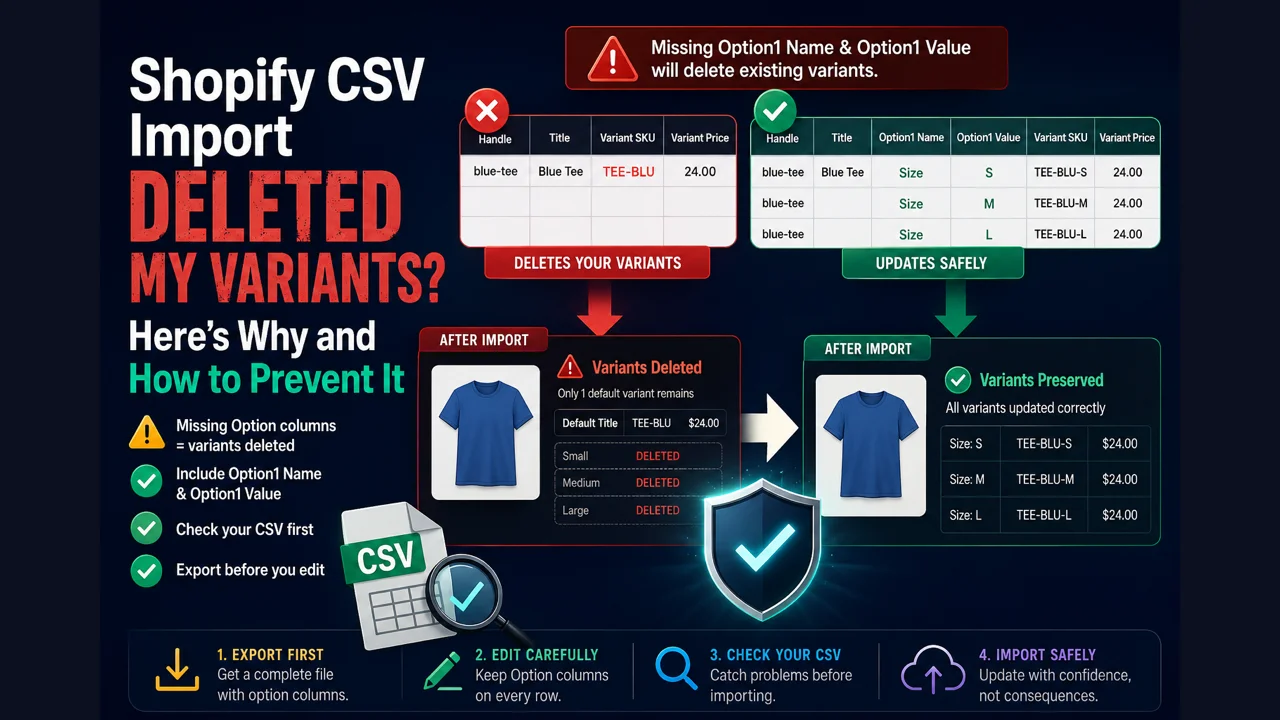
Short answer: a Shopify CSV import deletes your variants when the file includes a variant column such as Variant SKU or Variant Weight but is missing both the Option1 Name and Option1 Value columns. Shopify reads that as "rebuild this product with one default variant," so it deletes the existing variants. There is no error and no warning. To prevent it, always include Option1 Name and Option1 Value (filled on every row) whenever your file touches any variant field.
Why Shopify deletes the variants
When you import a product CSV, Shopify matches rows to products by their handle. For each matched product, it looks at the variant columns to decide what the variants should be. The option columns (Option1 Name, Option1 Value, and Option2/Option3 if used) are what define each variant. That is the crux: the variants are the option values.
So if your file carries a variant-level column like SKU or weight, but doesn't tell Shopify what the options are, Shopify has no option data to keep the existing variants alive. Its rule, stated plainly in Shopify's own CSV documentation, is that a missing Option1 Name and Option1 Value pair causes it to create a single new default variant and delete the rest. The SKU you were trying to update gets applied to that lone default variant, and every other variant is gone.
What the broken file looks like vs the safe one
Here's a minimal example. Say you want to update the SKUs on a t-shirt that has Small, Medium, and Large variants.
This deletes your variants (SKU present, no Option1 columns):
This updates them safely (Option1 Name and Value present on every row):
Notice three things in the safe version: Option1 Name and Value are on every variant row, the handle is identical across all rows, and only the first row repeats the Title. For a product with a single variant, the standard is Option1 Name = Title and Option1 Value = Default Title.
How to prevent it, step by step
Export the product first
In Shopify admin, go to Products, select the product (or use a filter to select a batch), and click Export. A Shopify export always contains the correct Option columns, so it's the safest starting point for any edit.
Edit only the columns you need, leave the Option columns in place
Change the price, SKU, or inventory you came to change, but do not delete the Option1 Name and Option1 Value columns, and make sure they're filled on every variant row. If your product uses two or three options, keep Option2 and Option3 columns too.
Keep the handle identical across a product's rows
All variant rows for one product must share the exact same handle. A blank or slightly different handle on a variant row makes Shopify treat it as a separate product, which splits your product instead of updating it. See our Shopify product CSV format guide for the full column rules.
Check the file before you upload
The whole failure is invisible until after the import, so the real safeguard is checking the file first. A checker that reads your CSV and flags a SKU or Weight column missing its Option1 columns catches the destructive case in seconds, before it touches your store.
Check your CSV before it deletes anything
Our free Shopify Product CSV Checker reads your file in the browser and flags exactly this, a SKU or Weight column without its Option1 columns, plus mangled SKUs, split handles, bad prices, and unreadable images. Nothing is uploaded, no signup.
Check my CSV free →How to recover variants that were already deleted
There is no undo for a product import. Your options, in order of preference:
- Re-import a good export. If you exported the product recently (or downloaded it before the bad import), re-import that file with the correct Option columns to rebuild the variants and their data.
- Check your app or backup history. Some inventory and backup apps keep product snapshots. If you use one, restore from the last good state.
- Rebuild manually. If you have no export, you'll have to recreate the variants by hand, which is exactly the pain this whole article exists to help you avoid next time.
The lesson every merchant learns once: export before you edit, and check the file before you import. It costs a minute and saves a catalog.
Bulk product edits are also where inventory drifts out of sync, since a botched import can zero counts or mismatch SKUs. Once your products are clean, EZStock keeps stock levels, reorder points, and purchase orders accurate on top of your Shopify catalog. And if you're moving a catalog in from another system, the Stocky to Shopify migration guide walks through the same export-check-import discipline for a full migration. The CSV checker is one of 6 free tools every Shopify merchant should use, alongside a checkout tracking checker, a store audit, and more.
Frequently asked questions
Why did my Shopify CSV import delete my variants? Your file had a variant column (SKU or Weight) but not both the Option1 Name and Option1 Value columns, so Shopify rebuilt the product with one default variant and deleted the rest. No error is shown.
How do I update SKUs by CSV without deleting variants? Include Option1 Name and Option1 Value (filled on every row) alongside the SKU column. Exporting the product first is the safest way to guarantee those columns are present.
Can I recover deleted variants? Only by re-importing a good export or restoring from a backup app. There's no native undo, which is why exporting first and checking the file matter.
Does a SKU column always delete variants? No, only when Option1 Name and Option1 Value are absent. A SKU column with those option columns present updates variants safely.