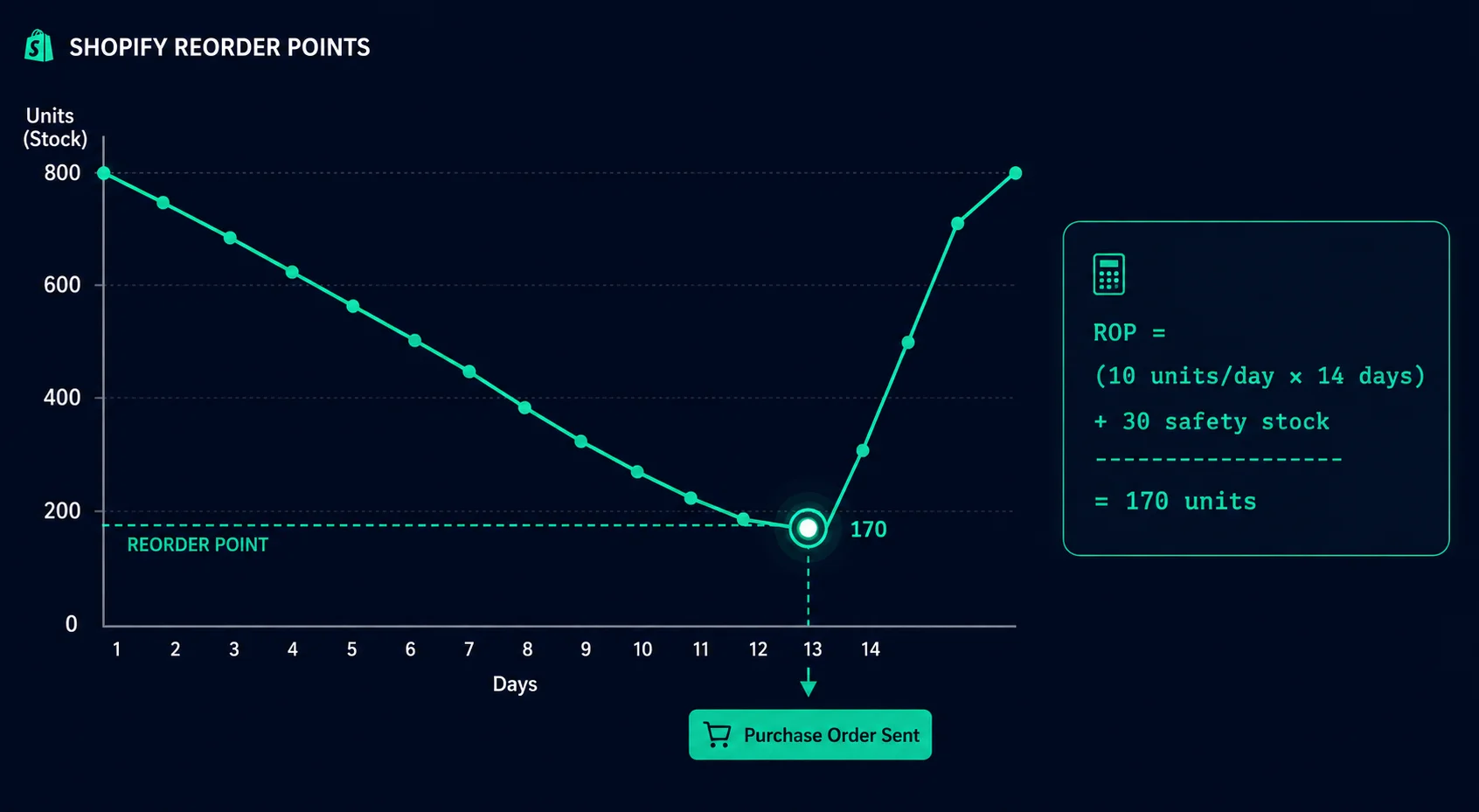
A reorder point is the exact stock level at which you should place a new purchase order so inventory arrives before you run out. It sounds simple. Most Shopify merchants either don't have one or set it once and never update it.
That's why they run out of stock. Not bad luck — a number they didn't calculate.
This guide gives you the formula, shows you how to adjust it for summer and BFCM peaks, and explains how to actually manage it inside Shopify without a spreadsheet.
What Is a Reorder Point (and Why Shopify Won't Calculate It)
A reorder point (ROP) is the minimum stock quantity that triggers a new purchase order. When your inventory hits that number, you place an order. By the time the order arrives, you should have just enough stock left — plus a safety buffer — to keep selling without interruption.
Shopify tracks inventory levels. It does not calculate reorder points. It does not tell you when to order. It does not flag low stock against a threshold you care about. You can enable "low stock" alerts in Shopify, but the threshold is fixed and not connected to your lead time or daily velocity. It's a number, not a decision.
Running out of stock in Shopify costs more than the lost sales. Research from the Baymard Institute shows that 40% of shoppers who encounter an out-of-stock product during a sale period don't return to that store. They find an alternative and move on. A reorder point prevents that from happening.
Definition: A reorder point is the stock level at which you must place a replenishment order to avoid a stockout, factoring in your daily sales rate and your supplier's lead time.
| Business Type | Safety Stock Multiplier | Reorder Point Adjustment |
|---|---|---|
| Standard ecommerce (stable demand) | 1.0–1.5× lead time demand | Base formula: (daily velocity × lead time) + safety stock |
| Seasonal product (peak periods) | 2.0–3.0× in peak months | Add 60–90 day seasonal buffer before peak |
| Fast fashion / trend-driven | 1.5–2.0× | Shorten reorder cycle; order more frequently |
| Perishables / expiry-sensitive | 0.5–0.8× | Lean buffer; prioritize FIFO to avoid expiry |
| Custom / made-to-order | 0 (no safety stock) | Order only on confirmed demand |
| High-velocity hero SKU | 2.0–2.5× | Set separate reorder point; alert at 2× normal level |
| Multi-location inventory | Per-location velocity | Each location needs its own reorder point |
The Reorder Point Formula
Here's the standard formula:
Example:
Daily sales: 10 units
Supplier lead time: 14 days
Safety stock: 30 units
ROP = (10 × 14) + 30 = 170 units
When stock hits 170, place the order.
Let's break down each component:
Average Daily Sales
Use a 30-day rolling average — not your all-time average, and not your best month. If you're heading into summer, use the last 30 days of data. If you're planning for BFCM, use your BFCM daily sales from last year (more on that in the next section).
Don't over-engineer this. For most products, the last 30 days of sales divided by 30 is accurate enough. If you have a product with wildly inconsistent sales, use a 60 or 90-day average to smooth it out.
Supplier Lead Time
This is the number of days between placing the order and stock arriving at your location. Include:
- Manufacturing or fulfillment time at the supplier
- Transit time (shipping)
- Any customs clearance time for international orders
- Your own receiving and processing time
If your supplier says 14 days and you know from experience it's more like 18, use 18. Use your real number, not the optimistic one.
Safety Stock
Safety stock is the buffer you keep on hand in case demand spikes or the shipment arrives late. A simple starting point is 20% of your lead-time demand.
Example: 10/day × 14 days × 0.2 = 28 units
If your supplier is unreliable or your product has highly variable demand, increase that multiplier to 0.3 or 0.4. If your supplier is rock-solid and demand is predictable, 0.15 is fine.
How to Adjust Reorder Points for Peak Season
A reorder point calculated on normal daily sales will fail during peak season. If you sell 10 units a day normally and 50 a day during BFCM, a reorder point of 170 units means you'll run out in 3 days instead of 17.
You need a separate peak-season reorder point. Here's how to calculate it:
Peak Safety Stock = Peak Daily Sales × Lead Time × 0.2
BFCM Example:
Normal daily sales: 10
BFCM multiplier: 5×
Peak daily sales: 50
Lead time: 14 days
Peak safety stock: 50 × 14 × 0.2 = 140
Peak ROP = (50 × 14) + 140 = 840 units
That's nearly 5× higher than your normal reorder point. Which makes sense — you're selling 5× faster and you need the same protection against running out.
When to switch to peak-season reorder points:
- BFCM: Switch in early October, 6–8 weeks before the sale. Revert to normal in early December.
- Summer sale: Switch in mid-June if you run a summer promotion. Revert after the sale ends.
- Back-to-school: Switch in late July for relevant product categories. Revert in September.
- Holiday gifting season: Switch in mid-November for gift-relevant products. Revert in January.
Critical timing: Switch to peak-season reorder points before demand actually spikes — not during it. If you update your reorder point on November 28, the spike has already started and it's too late to place a meaningful order.
Reorder Points for Different Product Types
Not every product uses the same formula inputs. Here's how to think about different categories:
Fast movers (high daily sales, short lead time)
Use a tight safety stock buffer — 15% to 20%. These products move predictably. A large buffer ties up cash flow you could use elsewhere. Reorder more frequently in smaller quantities.
Slow movers (low daily sales, variable demand)
Use a 30% to 40% safety buffer. Low-velocity products have more variable demand relative to their average. A spike of 5 extra units in a week matters a lot when you normally sell 2 a week.
Products with long international lead times (45–90 days)
The formula amplifies with longer lead times. A product with 90-day lead time and 10 daily sales has a base ROP of 900 units before safety stock — which means you need substantial capital on hand. Plan these 6+ months ahead for peak season.
Seasonal products
Use seasonal daily sales data, not annual averages. A Christmas ornament that sells 0.1/day in June sells 25/day in December. Treat these with a seasonal-specific ROP that switches on and off with the season.
Bundled products
Calculate reorder points for each component separately. The bundle's effective ROP is determined by the component that runs out first. If Bundle A uses 2 units of Component X and 1 unit of Component Y, and you sell 20 bundles/day, Component X needs a reorder point calculated at 40 units/day.
How to Set Reorder Points in EZStock
Shopify doesn't have a native reorder point field. EZStock adds this directly to your inventory workflow.
Here's how it works:
Link products to suppliers
In EZStock, you add your suppliers and then link each product variant to the relevant supplier. This connection is what makes automated PO creation possible when the reorder point is triggered.
Set reorder points per product
For each tracked product, you set the reorder point quantity. EZStock also shows you the sales velocity so you can calculate the right number on the spot.
Get flagged when stock hits the threshold
When a product's stock level drops to or below the reorder point, it appears on the EZStock dashboard as needing restock. No manual checking required.
Generate a purchase order in one click
Click the flagged product. Create a draft purchase order. EZStock pre-fills the supplier details and suggested order quantity. Review, adjust, and send — the PDF goes directly to your supplier's email.
Mark received, inventory updates automatically
When stock arrives, you mark the purchase order as received in EZStock. Inventory in Shopify updates automatically. No manual entry. No spreadsheet. DRAFT → SENT → RECEIVED.
For peak season, update your reorder points in EZStock before the demand spike. When BFCM is over, set them back to normal. Takes about 5 minutes per product if you've already done the formula calculation.
Stop checking stock levels manually. EZStock tells you exactly when to reorder.
Set reorder points per product, track sales velocity, and send purchase orders to your supplier from inside Shopify. Starter from $19/month · 14-day trial · no credit card required.
Install EZStock Free on Shopify →Reorder Point vs. Safety Stock: What's the Difference?
These two terms are related but different. Merchants often confuse them.
- Safety stock is the buffer inventory you keep to handle unexpected demand spikes or supplier delays. It's the cushion. You're not supposed to sell down to zero — you're supposed to have safety stock left when the new order arrives.
- Reorder point is the threshold that triggers an order. It's calculated using your lead time demand plus safety stock. It's a trigger — not a target stock level.
Think of it this way: safety stock is a floor, and the reorder point is the door above it. When you hit the door (reorder point), you place an order. If the order is late, you fall to the floor (safety stock) and wait. Safety stock is your last line of defense. The reorder point is supposed to prevent you from needing it.
If you're consistently burning through your safety stock before orders arrive, your reorder point is too low — not your safety stock too small. Adjust the ROP first.
Common Reorder Point Mistakes
The formula is simple. The mistakes merchants make are simpler.
Setting it once and never updating it
Your store grows. Sales velocity increases. Supplier lead times change. A reorder point you calculated 18 months ago on different data is wrong. Review it quarterly and before every peak season.
Using the same ROP year-round
A product that sells 5/day in summer and 25/day in November needs two different reorder points. Set a peak-season ROP, schedule a calendar reminder to switch it on, and switch it off after the peak.
Using the optimistic lead time
Suppliers give you their average lead time. Use the 80th percentile — the time it takes 80% of the time, including realistic delays. If your supplier usually takes 14 days but has taken 21 twice in the past year, use 18 or 19 in your formula.
Calculating ROP on revenue instead of units
Reorder points are in units — not dollars. Revenue data can mislead you because it mixes price changes, discounts, and bundle sales. Always calculate ROP in units sold per day.
Ignoring product variants
If you sell a shirt in 5 colors and 4 sizes, each variant needs its own reorder point. Your bestselling color/size combination might have a 10× higher velocity than your slowest. Aggregating them masks which variants actually run out.
