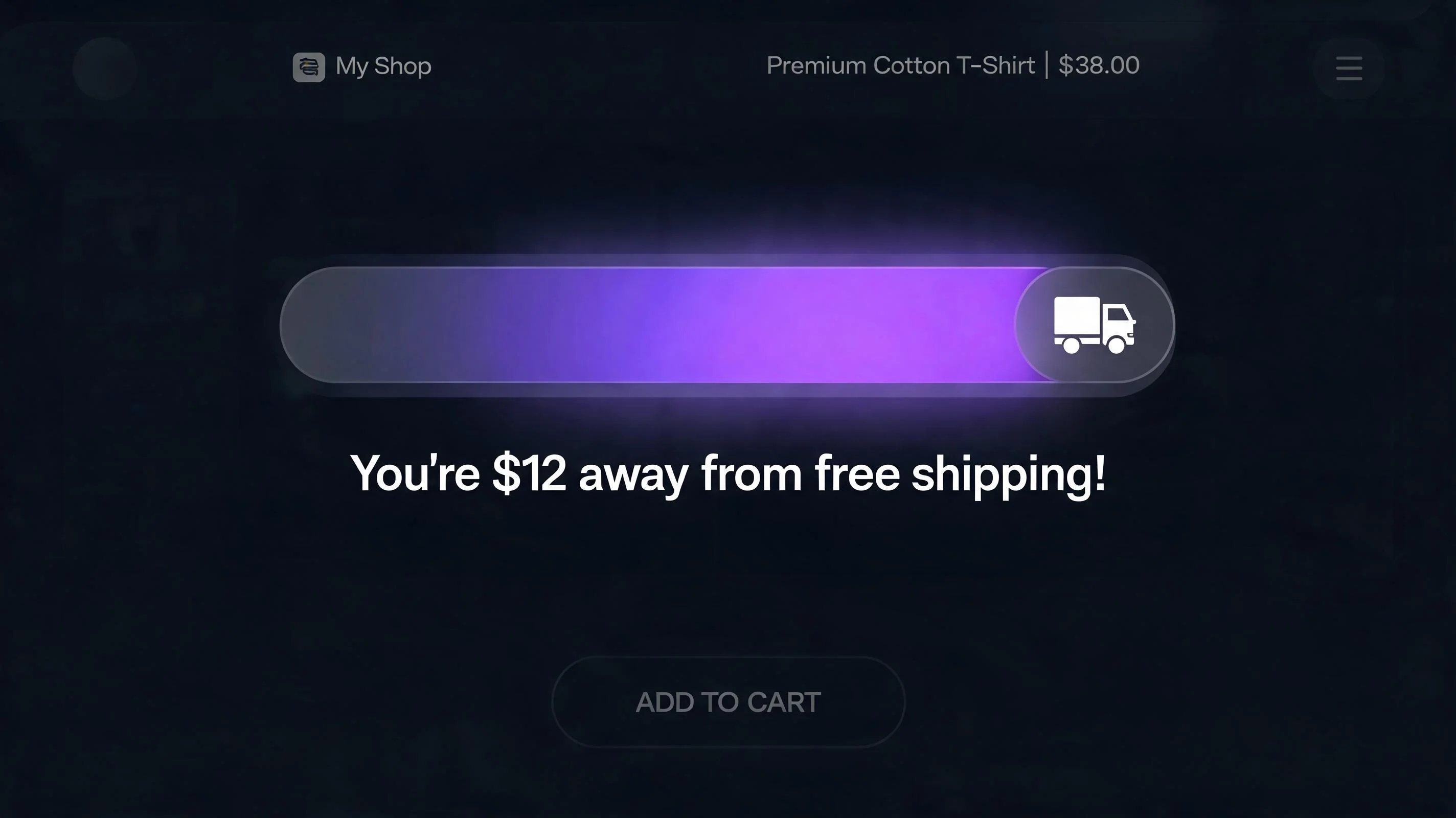
What is a free shipping bar?
A free shipping bar (also called a free shipping progress bar) is a widget that shows customers how close their current cart is to qualifying for free shipping. As they add items, the bar fills toward the threshold. The message updates dynamically: "You're $23 away from free shipping!" becomes "You're $7 away from free shipping!" as the cart grows, then "🎉 You've unlocked free shipping!" when they cross the threshold.
The widget uses real-time cart data — it reads the current cart total from Shopify and compares it to the threshold you set. No server round-trips, no page reloads. The bar updates instantly when the customer adds or removes items, creating a satisfying sense of progress that encourages one more item.
Free shipping bars are typically placed in the announcement bar position at the top of the page (visible sitewide), in the cart drawer or cart page, or directly on product pages below the price. Each placement serves a slightly different purpose in the funnel.
| Store Type | Recommended Threshold | Expected AOV Lift |
|---|---|---|
| Low AOV store ($20–$40 avg) | $35–$50 | +15–25% |
| Mid AOV store ($40–$80 avg) | $65–$85 | +12–20% |
| High AOV store ($80–$150 avg) | $100–$125 | +8–15% |
| Subscription-focused store | Match subscription value | +5–10% |
| Clearance / discount store | Low threshold ($25–$35) | +10–18% |
| B2B / wholesale | $150–$250 | +10–20% |
Why the free shipping bar lifts AOV: the psychology
Three behavioral mechanisms explain why the free shipping bar works so reliably:
Goal gradient effect. Psychologist Clark Hull demonstrated in 1934 that effort toward a goal increases as the goal gets closer. When a customer sees they're $12 away from free shipping, the closer they get, the more motivated they become. A half-filled bar is more motivating than an empty one; an 80%-filled bar is dramatically more motivating than both. This is why the dynamic nature of the bar matters — a static "free shipping on orders over $50" banner doesn't create the same effect.
Loss aversion applied to shipping costs. Shipping cost is one of the top reasons for cart abandonment — Baymard found it's cited by 49% of abandoners as the primary reason. When a customer is $8 away from free shipping and has a $10 item in their cart they're considering, the framing shifts from "should I buy this?" to "I'd pay $8 in shipping anyway, so this item is effectively free shipping." The comparison to a concrete alternative shipping cost changes the calculus.
Sunk cost commitment. Once a customer has added enough items to be, say, $5 from free shipping, they've invested time and intention. Adding one more $9 item to unlock free shipping feels smaller than starting fresh and buying $9 of items from a store that charges for shipping. The bar makes the commitment visible and makes adding to it feel incremental rather than new.
How to calculate the right free shipping threshold for your store
Setting the threshold too high means customers stop trying because the goal feels unreachable. Setting it too low means you're giving away free shipping to customers who would have spent that amount anyway — no AOV lift, just margin erosion.
The formula: set your threshold at 15–25% above your current average order value (AOV).
Here's the step-by-step calculation:
Find your current AOV
In Shopify Analytics → Reports → Sales by Traffic Source, find your average order value over the last 30 days. Alternatively: Total Revenue ÷ Total Orders = AOV. Write this number down.
Calculate your threshold range
Multiply your AOV by 1.15 and 1.25 to get your threshold range. Example: if AOV = $45, your threshold range is $51.75–$56.25. Round to the nearest clean number ($52 or $55). Start at the lower end of the range.
Check it against your actual shipping cost
The threshold should only be set at or above the point where free shipping is margin-neutral or positive. If your average shipping cost per order is $8 and your gross margin is 55%, an order at your threshold must generate enough gross profit to cover that $8. At $52 AOV with 55% margin: $52 × 0.55 = $28.60 gross profit — absorbing $8 shipping leaves $20.60 net. That's fine.
Run for 30 days, then adjust
After 30 days, check your new AOV in Shopify Analytics. If it's above the threshold (customers are clearing it), consider raising the threshold by $5. If the AOV barely moved, lower the threshold slightly to make the goal more achievable. Iterate quarterly.
Where to place the free shipping bar on your Shopify store
Sitewide (announcement bar position)
Placing the free shipping bar in the announcement bar at the top of every page creates constant visibility throughout the shopping session. Even on pages where the bar isn't cart-aware (it starts empty when the visitor has nothing in cart), the threshold message functions as a promise: "Spend $50 and we ship for free." This sets expectations early and frames every product in relation to the threshold.
On product pages, the bar becomes fully dynamic — as the visitor adds items to cart, the bar fills in real time. This is the magic moment of the widget: the instant visual feedback of progress toward a reward.
Cart page and cart drawer
The cart page is the second most effective placement. At this point, the customer has expressed maximum purchase intent by adding items to cart. Showing the bar here — "You're $11 from free shipping!" — is a last-mile nudge. Many stores report 8–12% of cart page visitors adding one more item when shown this prompt.
If your Shopify theme uses a cart drawer (a slide-out panel instead of a separate cart page), make sure your free shipping bar widget supports drawer placement. PopBoost's Free Shipping Bar widget renders in both contexts.
Product pages (below the price)
On individual product pages, the bar below the price serves a different function: it turns the product itself into a "stepping stone" toward the threshold. "This item gets you $39 closer to free shipping" isn't copy you'd write — but that's what the bar shows by implication when it fills 78% after the add-to-cart click.
Add a free shipping bar to your Shopify store — free
PopBoost's Free Shipping Bar is on the free plan — no credit card required. All 7 widgets are available on the free plan (one active at a time). Upgrade to Pro ($19/month, 14-day trial) to run all 7 simultaneously and remove the badge.
Install PopBoost free →Free plan available · no credit card required · works with all Shopify themes
How to set up a free shipping bar in PopBoost
Install PopBoost
Install PopBoost from the Shopify App Store. The Free Shipping Bar is available on the free plan. All 7 widgets are free to use, one at a time — upgrade to Pro ($19/month) to run all 7 simultaneously.
Configure the widget
In the PopBoost admin, open the Free Shipping Bar widget. Set your threshold amount (the cart total at which free shipping unlocks). Configure the messages for three states: initial ("Free shipping on orders over $50!"), in-progress ("You're $[X] away from free shipping!"), and unlocked ("🎉 You've unlocked free shipping!"). Set colors to match your theme.
Enable App Embeds in your Theme
Go to Online Store → Themes → Customize → App Embeds. Toggle PopBoost on. The free shipping bar will now appear sitewide in the announcement bar position. If you want it in the cart drawer or as a product-page App Block, add those blocks separately in the Theme Editor.
Coordinate with your Shopify shipping settings
Set the same threshold in PopBoost and in Shopify Admin → Settings → Shipping and Delivery to ensure the bar's threshold matches the actual free shipping condition on checkout. A mismatch — the bar showing one threshold, checkout applying a different one — creates confusion and damages trust.
Free shipping bar + inventory management: keeping it honest
One underappreciated aspect of a free shipping bar: it only works if you have the products available for customers to add. If your store frequently runs out of key items — especially the low-cost "add-on" products that customers use to reach the threshold — you're leaving the bar's potential on the table.
EZStock is a Shopify inventory management app that tracks reorder points, generates purchase orders, and manages supplier relationships — so your $12 add-on candles or $8 travel pouches are always in stock when customers need one more item to hit your shipping threshold. Pair inventory KPI tracking in EZStock with the free shipping bar in PopBoost for a complete AOV optimization workflow.
Measuring free shipping bar performance
Measure these metrics before and after enabling the free shipping bar (30-day windows for statistical significance):
- Average order value — the primary metric. Expect 15–25% lift for well-configured thresholds. Pull from Shopify Analytics → Reports → Sales.
- Items per order — secondary metric showing whether customers are actually adding items (vs. just spending more on fewer expensive items).
- Cart abandonment rate — the bar can reduce abandonment by making the cost of shipping avoidable with one more item. Check your cart abandonment rate in Shopify Analytics.
- % of orders above the threshold — if 80%+ of orders are above the threshold, your threshold is too low and you're giving away margin. If 20% or fewer cross the threshold, it's too high. Target 40–60% of orders meeting the threshold — this represents genuine AOV uplift without universal margin sacrifice.
For a deeper analysis of how your store's conversion funnel is performing — including whether your free shipping threshold is calibrated correctly relative to your product mix and traffic sources — RoastWeb provides an AI-powered store audit that surfaces specific revenue opportunities.
Frequently asked questions about free shipping bars
What is a free shipping bar on Shopify?
A free shipping bar is a progress bar widget that shows customers how close their cart is to the free shipping threshold. It updates in real time as they add items, motivating them to add one more item to unlock free shipping.
Does a free shipping bar increase average order value?
Yes. Shopify research and multiple ecommerce studies show free shipping thresholds with a visible progress bar increase AOV by 15–30%. The effect comes from the goal gradient effect (progress toward a goal is motivating) and loss aversion (customers would rather add an item than pay for shipping).
How do I set the right free shipping threshold?
Set the threshold 15–25% above your current average order value. If your AOV is $45, set the threshold at $52–$56. Too high and customers give up; too low and you give away free shipping with no AOV lift.
Does free shipping hurt margins?
Only if set incorrectly. If the threshold is calibrated so the gross margin on orders at the threshold covers the average shipping cost, the widget is margin-neutral or positive while lifting revenue. Calculate: (threshold × gross margin %) must exceed your average shipping cost.
How do I add a free shipping bar to Shopify without code?
Install PopBoost. The Free Shipping Bar is available on the free plan. Configure the threshold in the PopBoost admin, enable App Embeds in your theme, and the bar appears sitewide. No code required — works with all modern Shopify themes.
See how the free shipping bar works alongside PopBoost's other 6 widgets in the FOMO marketing for Shopify guide. For help understanding your current store metrics before setting your threshold, see the Shopify CRO checklist.
