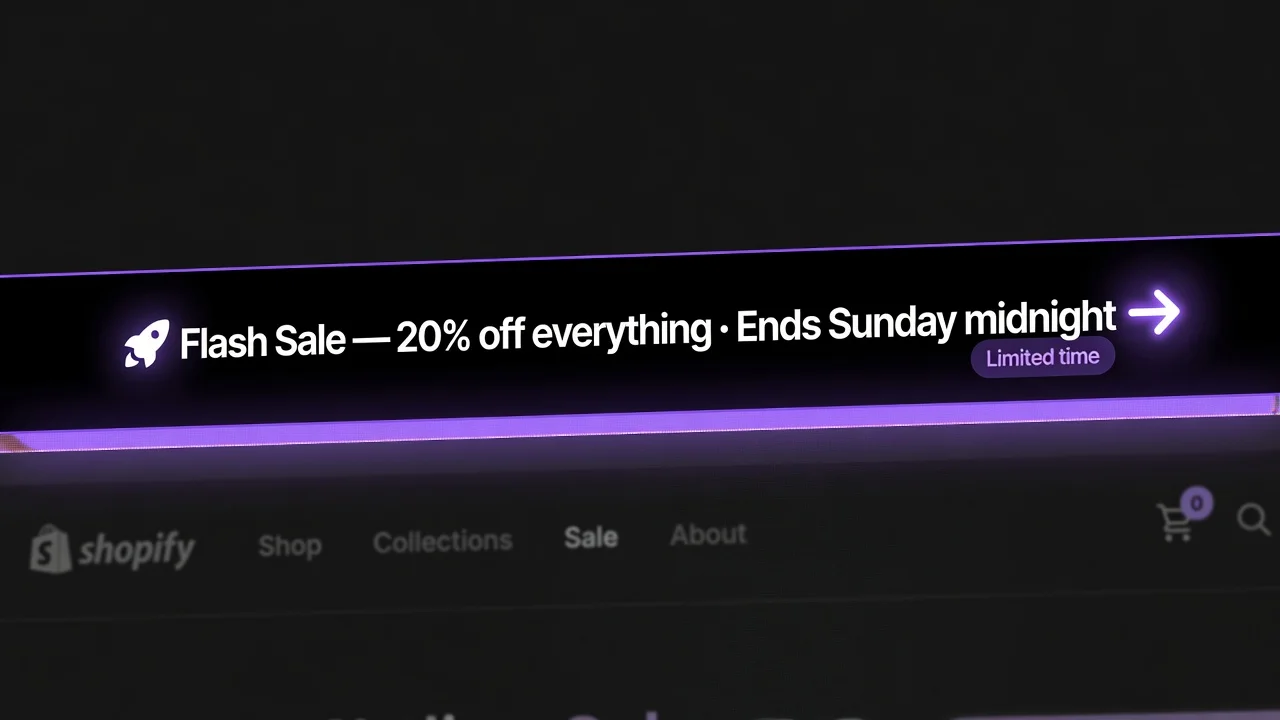
What is a Shopify announcement bar?
A Shopify announcement bar is a horizontal banner at the very top of your store — above the navigation header, above the logo, above everything else. It's the first element a visitor sees on any page and the last one they see as they scroll down. On mobile, it occupies valuable above-the-fold screen space. On desktop, it's a persistent stripe that follows the visitor through the entire browsing session when set to sticky.
Because the announcement bar is visible on every page — homepage, collection pages, product pages, cart page — any message you put there is effectively shown to every visitor in every session. This makes it uniquely powerful for sitewide communications and uniquely costly when misused (a bad message, seen by everyone, does proportional damage).
The announcement bar in PopBoost is available on the free plan. All 7 PopBoost widgets are accessible on the free plan — you can run one widget at a time with a small PopBoost badge shown. The Pro plan ($19/month) removes the badge and lets you run all 7 simultaneously.
The 6 highest-converting announcement bar messages
1. Free shipping threshold
"Free shipping on orders over $50 · Shop now →"
This is the most universally applicable announcement bar message and the one with the most consistent conversion impact. It sets expectations before checkout (eliminating shipping cost surprise) and motivates higher order values throughout the session. Pair it with PopBoost's free shipping progress bar widget for maximum effect — the bar shows dynamic progress; the announcement bar shows the standing offer.
The CTA link ("Shop now →") should link to your bestselling collection or homepage. Clicking it from a product page reinforces that the offer applies everywhere, not just to specific items.
2. Active sale with deadline
"Summer Sale: 20% off everything · Ends Sunday at midnight →"
This format creates urgency (the deadline) and communicates value (the discount) in a single line. The link should go to a collection page filtered to show all sale items. Adding a countdown timer to the announcement bar alongside this message creates a double-urgency effect — the text states the deadline; the timer makes it visceral.
This message should only run when you have an actual sale running with an actual end date. Permanent "sale" messages without a deadline become invisible — shoppers tune them out after the first visit.
3. Shipping cutoff deadline
"Order by 2PM today for next-day delivery · Express shipping available →"
Shipping cutoff messaging is one of the highest-intent announcement bar uses. A customer who needs a gift for an occasion this weekend is extremely motivated by a "order now to get it by Friday" message. This format is especially effective in the 72-hour windows before major occasions (Mother's Day, Christmas, Valentine's Day) when delivery timing is the decision factor.
This message requires accuracy — only show it when the cutoff is real and your fulfillment can reliably deliver on the promise. A cutoff message that results in a late delivery damages trust irreparably.
4. New product or collection launch
"New: The Summer Collection is here · Shop new arrivals →"
Announcement bars are an effective launch vehicle for new products. Existing customers who visit your store after a new collection drops will see the announcement immediately — even before navigating to the relevant section. The link goes to the new arrivals collection or a specific new product page.
For pre-launch announcements (before a product is available), use: "New collection drops Thursday · Join the waitlist →" with a link to an EZDrop waitlist page. This converts the announcement bar into a waitlist driver, building pre-launch demand before the drop goes live.
5. Restock announcement
"Back in stock: The bestselling Black Jacket · Shop before it sells out again →"
Restock announcements are high-intent for customers who were previously interested in a sold-out item. The message implies social proof (others want this), creates urgency (it sold out before), and provides a direct path to purchase. For accurate restock timing, pair with EZStock's purchase order tracking — you'll know exactly when a PO is received and can schedule the restock announcement to match the inventory arriving in your warehouse.
6. Trust-building offer
"Free returns on every order · No questions asked →"
A trust-based announcement bar message is not a sale or urgency signal — it's a risk-reduction message. For stores selling high-ticket or high-consideration products (furniture, electronics, jewelry), addressing the return risk prominently can be the most effective use of this real estate. "No questions asked returns" or "Lifetime warranty on all products" changes the risk calculus for hesitant visitors.
| Feature | PopBoost | Hello Bar | Wisepops | Privy |
|---|---|---|---|---|
| Price | Free + $19/mo | Free + $29/mo | $49+/mo | Free + $30/mo |
| Sticky top bar | ✓ | ✓ | ✓ | ✓ |
| Countdown timer in bar | ✓ | ✗ | ✓ | ✗ |
| Free shipping goal display | ✓ | ✗ | ✗ | ✗ |
| Custom close button | ✓ | ✓ | ✓ | ✓ |
| Match store theme | ✓ | ✓ | ✓ | ✓ |
| No code (Theme App Extension) | ✓ | ✓ | ✓ | ✓ |
| Bundle with other FOMO widgets | ✓ (7 widgets) | ✗ | ✗ | ✓ (email + popup) |
Announcement bar design: what works
Contrast is everything. The announcement bar must stand out from your navigation header. If your header is white, the bar should be a dark color — deep navy, forest green, or black. If your header is dark, the bar should be a bright color. Low-contrast bars (light gray text on slightly darker gray) are effectively invisible and provide no click-through value.
One message, one CTA. The bar has room for approximately 60–80 characters of text on desktop and 35–45 characters on mobile before truncation. Don't try to communicate two things. Pick one message and one CTA link per bar display. If you have multiple messages to communicate, rotate between them (see "Rotating messages" below), but show one at a time.
Font size: readable, not dominant. The announcement bar text should be 12–14px — readable without being the most prominent typographic element on the page. The navigation logo and CTAs should remain visually dominant. A 16px+ announcement bar text starts to compete with your navigation hierarchy.
Emoji sparingly. A single emoji at the start of the message (🚨 or ⚡ or 🎉) draws attention and adds visual interest to an otherwise text-only bar. More than one emoji per message starts to look cheap. Zero emoji is also fine for premium brands where the aesthetic requires restraint.
Sticky vs. static. A sticky announcement bar (one that stays at the top of the screen as the visitor scrolls) is more visible throughout the session but costs screen real estate on mobile. A static bar disappears on scroll, which is cleaner but reduces visibility. For sale deadlines and shipping cutoffs, sticky is the right choice. For always-on free shipping messages, static is acceptable.
Rotating announcement bar messages
Most merchants set one announcement bar message and leave it for months. A better approach is rotating 2–3 messages, each rotating every 5–8 seconds or on a navigation-based trigger (showing a different message each time the visitor navigates to a new page).
Example rotation for a store running a weekend sale:
- Rotation 1: "Weekend Flash Sale · 20% off everything · Ends Sunday midnight →"
- Rotation 2: "Free shipping on orders over $50 · You're $X away →" (dynamic, reads cart data)
- Rotation 3: "Free returns on all orders · Shop risk-free →"
This rotation communicates the sale (urgency), the free shipping offer (AOV motivation), and the trust signal (risk reduction) — three conversion levers — within the first 20 seconds of a visit. PopBoost's announcement bar supports message rotation with configurable rotation intervals.
How to add an announcement bar with PopBoost
Install PopBoost (free)
Install PopBoost from the Shopify App Store. The Announcement Bar is available on the free plan — no credit card required. You can run one widget at a time on the free plan; upgrade to Pro ($19/month) to run all 7 simultaneously and remove the badge.
Configure your message in the PopBoost admin
In the PopBoost admin, click the Announcement Bar widget card. Enter your message text. Add a CTA link (destination URL) and CTA text ("Shop now", "View sale", "Learn more"). Configure background color, text color, and whether the bar should be dismissible. If you want to add a countdown timer, enable the countdown option and set the end date — PopBoost will render the timer inline with your message text.
Enable App Embeds in your Theme
Go to Online Store → Themes → Customize → App Embeds. Toggle PopBoost on. The announcement bar will now appear at the top of every page in your store. If your theme already has a built-in announcement bar section, you'll need to disable it to avoid showing two bars simultaneously.
Set the bar to sticky (optional but recommended for promotions)
In the Announcement Bar settings, toggle "Sticky" to keep the bar visible as visitors scroll down. Verify on mobile that the sticky bar doesn't overlap your navigation or any critical product page elements. Test on iOS Safari and Android Chrome — sticky positioning behaves differently on each.
Schedule message updates for upcoming promotions
Rather than remembering to update the announcement bar for each promotion, schedule a reminder in your calendar to update the bar message the day before each planned promotion starts. Mark a second reminder for the day the promotion ends — to either remove the sale message or update it to a new one. A stale announcement bar ("Summer Flash Sale!!" in November) is worse than no announcement bar.
Add a free announcement bar to your Shopify store today
PopBoost's Announcement Bar is on the free plan — no credit card required. All 7 widgets are free to try, one at a time. Upgrade to Pro ($19/month, 14-day trial) to run all 7 simultaneously and remove the badge.
Install PopBoost free →Free announcement bar · no credit card required · works with all Shopify themes
Announcement bar for product drops and launches
The announcement bar is one of the most effective pre-launch tools for product drops. When you're building a waitlist for an upcoming release, the announcement bar drives waitlist signups from every visitor — not just those who navigate to the drop product page directly.
Use: "New drop launching Friday: [Product Name] · Join the waitlist →" with a link to your EZDrop waitlist page. This message can run for the full pre-launch window (1–2 weeks before the drop date), converting browse sessions into waitlist signups that will be notified the moment the drop goes live.
On launch day: switch the message to "Live now: [Product Name] · [N] sold in the last hour · Shop before it sells out →". This combines urgency, social proof, and scarcity in one line. Link to the product page. Pair with PopBoost's social proof popup (showing real recent purchases), the stock countdown (showing units remaining), and the countdown timer (if there's a limited sale window on the launch day price).
This sequence — pre-launch announcement bar driving waitlist → EZDrop managing the waitlist → launch-day announcement bar with social proof → PopBoost FOMO stack on the product page — is the complete conversion infrastructure for a product drop.
Measuring announcement bar performance
The announcement bar is the only widget where click-through rate is the primary metric (rather than conversion rate). Track:
- Announcement bar CTR — what % of sessions where the bar was visible result in a click on the CTA link? A well-configured promotional bar should achieve 3–8% CTR. Below 2% suggests the message isn't compelling or the CTA is unclear. Above 10% is excellent — most promotional bars don't exceed this.
- Conversion rate of sessions where bar CTA was clicked — visitors who click the announcement bar CTA are self-selecting as interested. They should convert at 2–4× your store average. If they're converting at roughly the same rate as non-CTA sessions, your bar CTA is targeting visitors who would have converted anyway — consider testing more specific CTAs that capture higher-intent segments.
- AOV when free shipping bar message is shown — compare average order value during weeks when your announcement bar promotes the free shipping threshold vs. weeks when it shows a different message. The AOV difference is the bar's free shipping message contribution.
Common announcement bar mistakes to avoid
A permanent generic message. "Free shipping on orders over $50" that never changes, never references a current promotion, and has been showing since the store launched is invisible to return visitors. They've seen it enough times to stop reading it. Rotate messages and update for promotions to keep it fresh.
Too much text. A 120-character announcement bar message will be truncated on mobile. Every message must be readable on a 375px-wide screen at 13px font size. Write the mobile version first, then check it on desktop.
No CTA link. An announcement bar without a clickable CTA is a branding element, not a revenue element. Every promotional message should have a link — to the sale collection, to the new product, to the waitlist page. Track clicks to measure performance.
Color that clashes with your navigation. The announcement bar is immediately adjacent to your navigation header. If the two elements clash visually — similar colors, competing for attention — one of them loses. Use the announcement bar color to create a deliberate visual break from the navigation, not a jarring conflict. Test on mobile, where the bar and nav are vertically stacked and any color clash is immediately obvious.
Leaving the bar up after a promotion ends. A "Sale ends tonight!" message that's still running two weeks after the sale ended is worse than no announcement bar. Set calendar reminders for every promotion start and end date to update the bar promptly.
Frequently asked questions about Shopify announcement bars
What is a Shopify announcement bar?
A Shopify announcement bar is a horizontal banner at the top of every page in your store, above the navigation. It's the highest-visibility element on the site and is shown to every visitor in every session. Best used for sale announcements, free shipping offers, shipping deadlines, and product launch announcements.
What should I put in my Shopify announcement bar?
The highest-converting messages are: (1) a free shipping threshold ("Free shipping over $50"), (2) an active sale with deadline ("20% off · ends Sunday"), (3) a shipping cutoff ("Order by 2PM for next-day delivery"), (4) a new product launch ("New collection just dropped"). Rotate between these based on your current marketing priority. Avoid generic welcome messages.
How do I add an announcement bar to Shopify without coding?
Two options: use your theme's built-in announcement bar section (most modern Shopify themes include one in the Theme Editor), or install PopBoost for an announcement bar with CTA links, countdown timers, and message rotation — all available on PopBoost's free plan, no code required.
Can I show a countdown timer in my Shopify announcement bar?
Yes. PopBoost's Announcement Bar widget supports inline countdown timers alongside your message text. Example: "Flash Sale ends in [4h 22m 17s] · Shop now →". The timer is real-time and follows the visitor through the session.
Should the announcement bar be dismissible?
For time-sensitive promotions (sale deadlines, shipping cutoffs): non-dismissible is better — the visitor needs to see it. For always-on informational messages (free shipping threshold): allow dismissal so it doesn't become intrusive for return visitors. Configure per-message in PopBoost's settings.
The announcement bar is the entry point of your FOMO stack. See how it works alongside all 7 PopBoost widgets in the FOMO marketing for Shopify guide. For a complete conversion optimization roadmap, see the Shopify CRO checklist.
