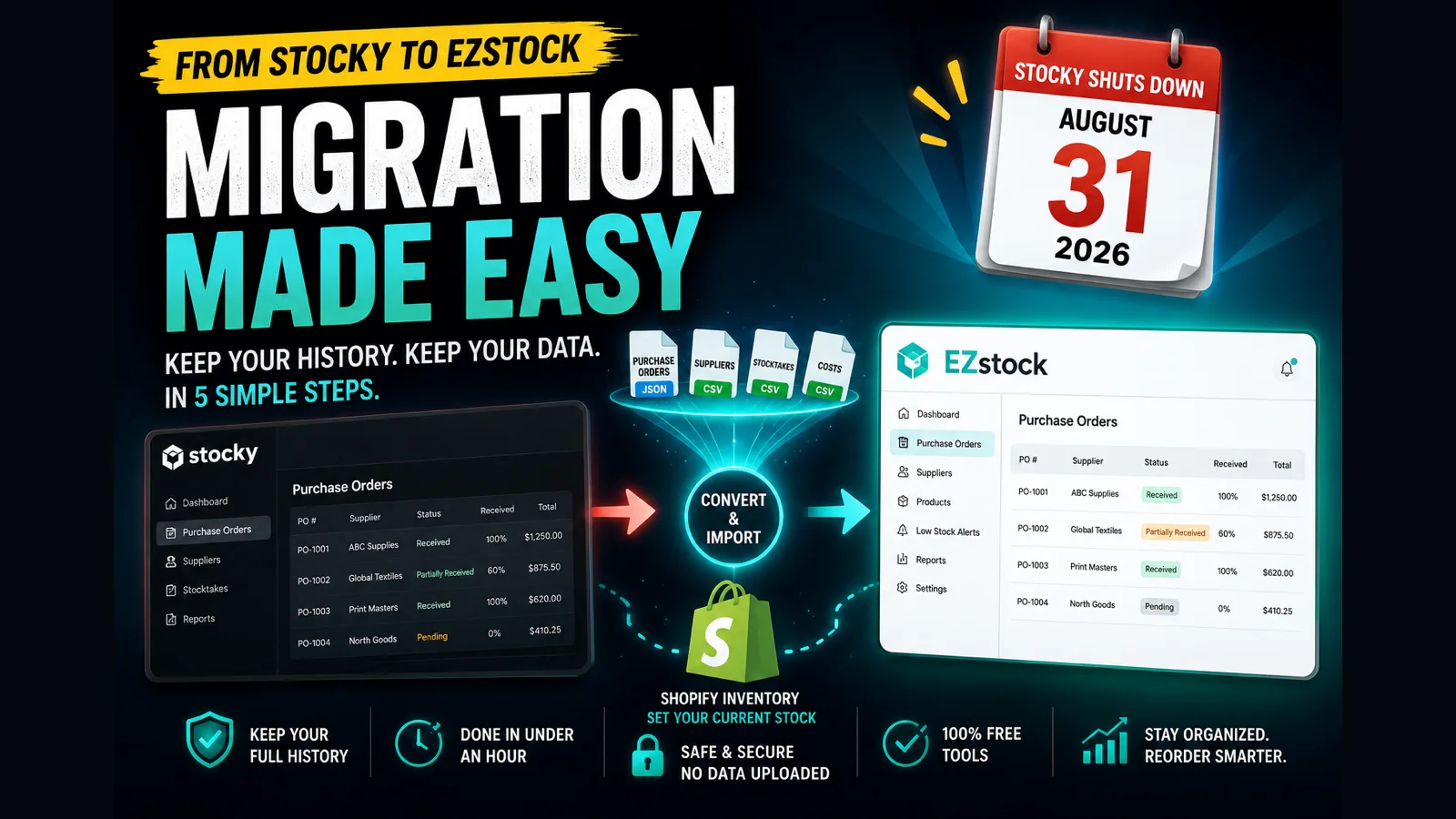
In one line: To migrate from Stocky, export your purchase orders, suppliers, stocktakes, and costs before Stocky shuts down on August 31, 2026, convert the files with the free Stocky Export Converter, then import current stock into Shopify and your full purchase-order history into EZstock. Most stores finish in under an hour.
How do you migrate from Stocky, step by step? Five steps, most stores done in under an hour. 1) Export your purchase orders, suppliers, stocktakes, and costs from Stocky before August 31, 2026. 2) Convert each file free with the Stocky Export Converter. 3) Import the stocktake into Shopify to set current stock. 4) Import suppliers and the converted purchase orders into EZstock, which keeps status, received quantities, and costs. 5) Re-enter reorder points and supplier notes, the only things no export carries.
Before you start
- Do this while Stocky still works. Once it is gone or August 31, 2026 passes, the export path goes with it.
- You will move four things: purchase orders, suppliers, stocktakes (current counts), and your SKU cost list.
- You need two free tools: the Stocky Export Converter and EZstock (both have a free tier, no card).
- Set aside about an hour. Nothing here needs code or a developer.
The order matters. Export first so your data is safe, convert so it imports cleanly, then load current stock into Shopify and your history into EZstock. Here is each step.
1 Export your data from Stocky
Open Stocky and pull all four data types before the deadline.
- Purchase orders: use the Stocky API JSON export (
purchase_orders.json) if you can reach it. It is the authoritative source, carrying the cost you actually paid per line and the real received date. If the API is not available to you, the CSV export works too; it just leaves out those two fields. - Suppliers: export the supplier list (names and lead times).
- Stocktakes: export your current on-hand counts.
- Costs: export the SKU cost list if it is separate from your POs.
Save all four files somewhere you control, like a folder on your computer. Need the exact export screens? The Stocky export checklist covers each one.
2 Convert each file with the free converter
A raw Stocky export does not import as history. Stocky sends one purchase order per file and formats fields in a way Shopify and inventory apps do not read directly.
Open the Stocky Export Converter and drop each file in. It runs entirely in your browser, so nothing is uploaded. For each file it does three things: auto-detects the type, consolidates the one-PO-at-a-time exports into a single file, and gives you an import-ready download that keeps status, received quantities, costs, dates, and suppliers. If a spreadsheet mangled a long SKU into something like 7.5E+11, the converter lists that row for you instead of dropping it.
Download the converted stocktake file and the converted purchase-order and supplier file. You will use them in the next two steps.
3 Set your current stock in Shopify
Current on-hand counts belong in Shopify itself. In Shopify admin, go to Products → Inventory, choose Import, and upload the converted stocktake file. Shopify matches by SKU and sets the available quantity per location. This is the one piece of the migration Shopify handles natively.
4 Import your history into EZstock
Purchase orders, suppliers, and costs have no home in Shopify's core, so they go into EZstock. Install it (the free plan is enough to migrate), then work in this order:
- Import suppliers so lead times and cost-per-SKU are in place first.
- Link products to suppliers by SKU, so each purchase order line ties to the right variant.
- Import the converted purchase orders. EZstock reads the file, groups the lines back into whole purchase orders, and recreates each one with its supplier, PO number, status, received quantities, and costs. A supplier named in the file that does not exist yet is created for you, and a line whose SKU is not in your catalog still imports (with the title from the file) so a purchase order is never partly dropped.
This step is pure record-keeping inside EZstock, so it makes no changes to your live Shopify stock. Your years of purchase-order history land in one pass, without re-typing.
5 Verify, then finish the two manual bits
Open a few of the imported purchase orders and check the supplier, status, and received quantities against what you remember from Stocky. Once they look right, re-enter the only two things no Stocky export carries: supplier notes (free text) and reorder points. Turn on low stock email alerts, and your migration is done. You can now reorder from EZstock the way you used to from Stocky.
Start with the free converter
Drop your Stocky exports into the free converter to get clean, import-ready files that preserve your full purchase-order history. No signup, runs in your browser, nothing uploaded.
Convert my Stocky export free →What carries over, and what you re-enter
If you want to know exactly which fields survive before you begin, here is the honest breakdown.
| Stocky data | Carries over? | Where it lands |
|---|---|---|
| Current stock counts | Yes | Shopify Inventory import |
| Purchase orders (status, received qty, costs) | Yes, after converting | EZstock |
| Suppliers (name, lead time) | Yes, after converting | EZstock |
| Cost-per-item | Yes | Shopify cost field / EZstock |
| Supplier notes (free text) | No, re-enter | Not in any Stocky export |
| Reorder-point settings | No, re-enter | Not in any Stocky export |
Wondering whether it is worth moving the full history rather than just current stock? The Stocky to Shopify migration guide covers why Shopify cannot hold purchase orders and what you lose if you skip them. If you are still choosing an app, the best Stocky alternatives for 2026 compares the main options side by side, and the EZstock vs Stocky comparison covers the direct like-for-like replacement in detail.
Frequently asked questions
How long does a Stocky migration take? For most stores, under an hour of active work: a few minutes to export each data type, about a minute per file to convert, then the imports. The only slow part is re-entering supplier notes and reorder points, which no export carries.
Will I lose my purchase-order history? Not if you convert the files first. Shopify's own import keeps only line items and makes a draft, dropping status, received quantities, suppliers, and costs. Converting and importing into EZstock keeps the full history.
Do I need to convert the files, or can I import a raw Stocky export? You need to convert. Stocky exports one purchase order at a time and formats fields in a way inventory apps do not read directly. The free converter consolidates and reformats them, and flags rows a spreadsheet mangled instead of dropping them.
What if I already uninstalled Stocky? If Stocky is gone and it is past August 31, 2026, the data cannot be recovered. If Stocky is still installed, export everything immediately before doing anything else.
Does the migration cost anything? The converter is free with no signup, and EZstock has a free plan, so importing your history and current stock does not force you onto a paid tier on day one.