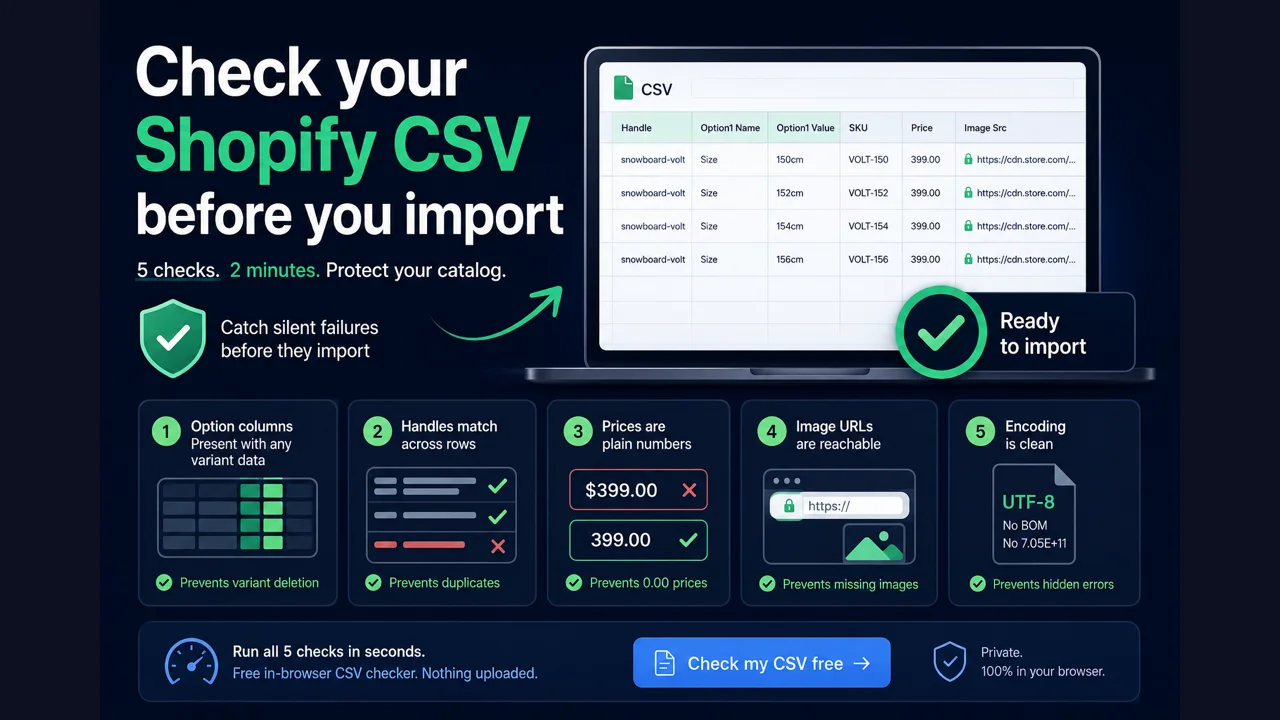
Short answer: before importing a Shopify product CSV, check five things: the Option1 Name and Value columns are present whenever any variant column is, handles match exactly across a product's rows, prices are plain numbers with no symbol, image URLs are public https links, and the file is UTF-8 with no BOM and no SKUs mangled into scientific notation. A free in-browser checker runs all five in seconds.
Why check first instead of fixing after
Shopify's import shows a preview and catches a few obvious problems, but it does not warn you about the destructive ones. A file that deletes every variant, or writes a mangled SKU across your catalog, imports "successfully" with a green result. There is no undo for a product import, so by the time you notice, the damage is done. Checking the file first is the only reliable safeguard, and it costs a couple of minutes against hours of cleanup.
The five-point pre-import check
Option columns are present with any variant data
If your file has a SKU, price, or weight column, confirm Option1 Name and Option1 Value are also present and filled on every variant row. Missing them is what makes Shopify delete your variants, with no warning. For single-variant products, use Option1 Name = Title and Option1 Value = Default Title. This is the check that prevents the worst outcome, covered fully in why a CSV import deletes your variants.
Handles match across a product's rows
Every variant row of one product must carry the exact same handle, lowercase, no spaces, no blanks. A mismatched or empty handle on a variant row splits your product into duplicates. Sort by handle and scan for any that don't line up.
Prices are plain numbers
Scan the price columns for anything that isn't a bare number. A $, a currency code, or a thousands comma makes the row import as 0.00 or fail. Compare-at should be blank, not 0, when there's no sale.
Image URLs are reachable
Image Src must be a public https URL Shopify can download. Spot-check that none are http-only, behind a login, or end in _thumb, _small, or _medium. Those import the product with no image and no error.
Encoding is clean
Make sure the file is UTF-8 without a BOM (a BOM can hide your Handle column) and that no long SKUs turned into 7.05E+11. If Excel touched the file, re-check the SKU column, or re-export and open it in Google Sheets.
Run the whole check in seconds, free
Instead of eyeballing 5,000 rows, drop the file into our free Shopify Product CSV Checker. It reads your CSV in the browser and runs all five checks at once, ranked worst-first with the fix for each, including the silent variant-deleting case. Nothing is uploaded, no signup.
Check my CSV free →If the checker flags something, our guides on fixing common import errors and the product CSV format rules walk through each fix. Shopify's own import documentation is the source for the column definitions. And once your products are imported cleanly, EZStock keeps stock levels, reorder points, and purchase orders accurate on top of them, which matters most right after a bulk change, when counts are easiest to knock out of sync.
Frequently asked questions
How do I check a CSV before importing? Verify the option columns, matching handles, plain prices, reachable image URLs, and clean UTF-8 encoding. A free in-browser checker does all five at once.
Why check first? The worst import failures show no error and can't be undone, so catching them before upload is the only reliable option.
Does Shopify validate the CSV itself? It catches a few obvious errors in the preview but not the destructive ones, like a missing Option column that deletes variants.
Is there a free validator? Yes, a free in-browser product CSV checker flags the destructive cases plus handle, price, image, and encoding issues, and stores nothing.