Why a product quiz converts better than a product grid
Most stores present customers with a wall of products and hope they figure it out. Dozens of variants, categories and price points, it's overwhelming. A shopper who doesn't know where to start usually leaves.
A quiz changes the dynamic entirely. Instead of asking "which product do you want?", you ask a few short questions about what they need, then hand them the exact answer. It shifts the experience from browsing to guided selling.
The other advantage: when a quiz recommends a curated bundle of two or three products together, the natural follow-through is adding all of them. That's where the automatic reward discount comes in, and average order value climbs significantly.
| Placement | Avg Completion Rate | Avg Conversion Lift |
|---|---|---|
| Homepage hero section | 55–65% | +20–35% |
| Product collection page (above products) | 60–72% | +30–45% |
| Product page (mid-content) | 45–58% | +15–25% |
| Popup on entry (0s delay) | 25–35% | +8–15% |
| Popup on exit intent | 30–42% | +10–20% |
| Blog post CTA | 20–30% | +5–12% |
| Dedicated /quiz landing page | 70–82% | +40–55% |
What you need before starting
- A Shopify store with at least 2–3 products in any category
- The Quizzo app installed (3-day free trial)
- 5–10 minutes
Step-by-step setup
Install Quizzo and activate your subscription
Install Quizzo from the Shopify App Store and open the embedded admin. Set up your reward tiers and a maximum discount (for example 15%) so the reward wheel can never exceed your margin limit. Activating the subscription also creates the automatic checkout discount powered by a Shopify Function.
Build your quiz from your catalog
In the embedded admin, build questions by hand or click Auto-build from my catalog. Quizzo reads your products, categories, attributes and price ranges, then drafts the questions for you. Edit, reorder or add questions as needed. Because it reads your live catalog, this works for any niche.
Add the quiz to your storefront (no code)
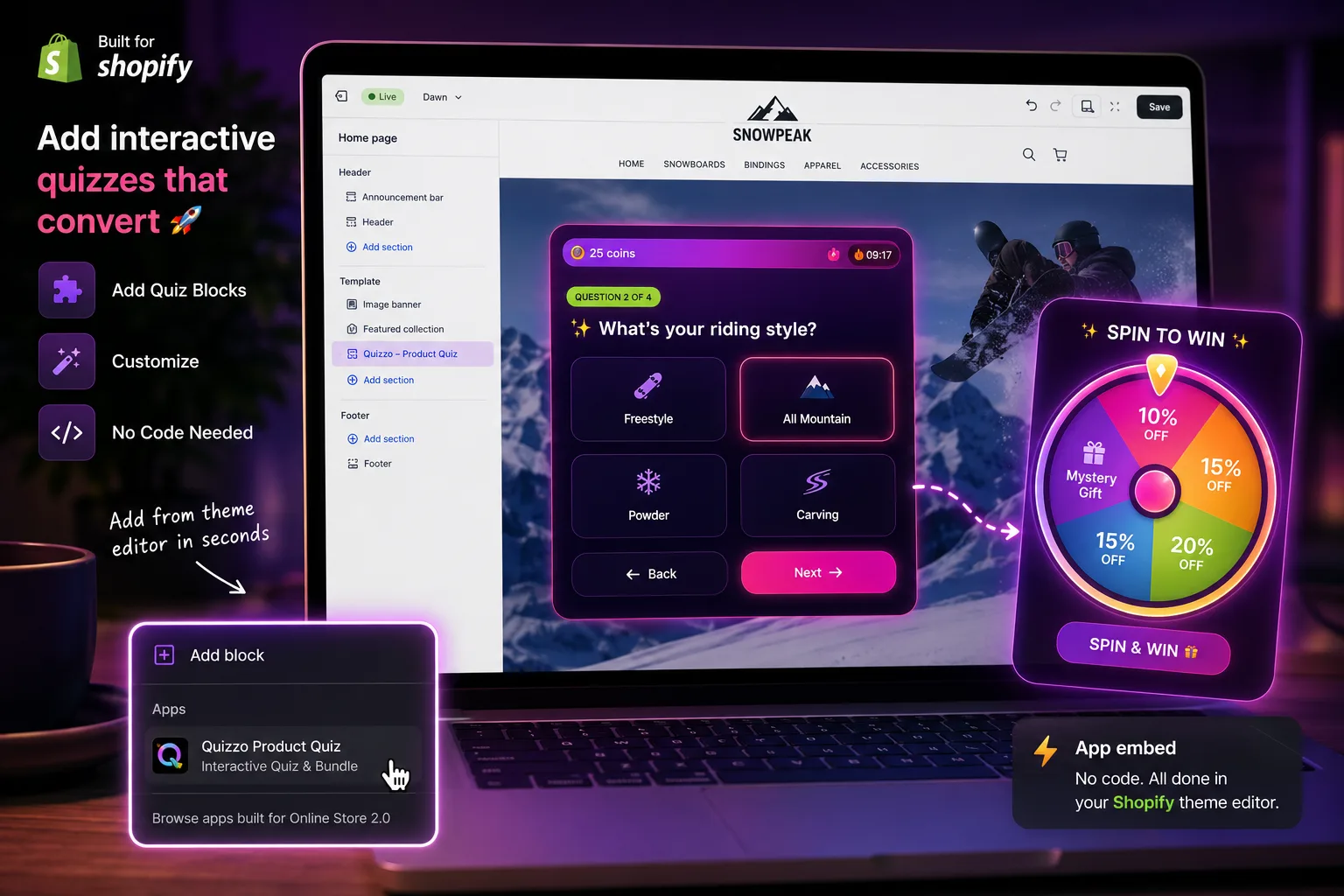
Go to Online Store → Themes → Customize. Add the Product Quiz theme block to any template, positioning it wherever you like, then click Save. Prefer a store-wide popup instead? Enable the Quizzo app embed in the theme editor and the quiz appears everywhere with no template edits.
Test the full flow
Open your storefront and take the quiz. Answer the questions, spin the reward wheel, and confirm a curated bundle appears from your catalog. Add the bundle to cart and go to checkout, the reward discount should apply automatically through the Shopify Function, clamped to your maximum, with no coupon code to enter.
How Quizzo builds the questions from your catalog
You don't write the quiz from scratch. Click Auto-build from my catalog and Quizzo reads your live products, then drafts questions across the dimensions that actually help a shopper choose:
- Category, which type of product they're shopping for, pulled from your collections and product types
- Attributes, the preferences that matter in your niche, such as size, material, use case, skin type or flavour, taken from your options and metafields
- Budget, the price range they're comfortable with, derived from your real price points
Every answer maps back to your catalog. The quiz aggregates the shopper's responses and surfaces the products that match on category and attributes, ranked by relevance. You can edit, reorder or add questions any time in the embedded admin.
Which products show up in results?
You don't manage a manual tag list. Quizzo handles product eligibility automatically: it reads your catalog and uses metafields plus auto-applied tags to decide which products can appear. There's nothing to memorise and no fixed tag scheme to maintain.
Matching is generic, based on category and attributes rather than a hard-coded list, so it works for any catalog in any niche. A single product can match several answer paths at once, which makes it more likely to appear for the shoppers it genuinely fits. As you add products, Quizzo keeps eligibility in sync in the background.
The discount fires automatically, no coupon needed
Once a shopper spins the reward wheel and adds their curated bundle to the cart, the reward discount applies at checkout without any action from the customer. There's no code to remember and no banner to click, it just works. This is powered by a Shopify Function running natively inside Shopify, and the reward is always clamped to the maximum you set.
What if a product doesn't show up?
Because eligibility is automatic, the usual fix is to make sure the product has the category and attributes Quizzo needs to match it. In Shopify Admin → Products, check that the product type, collections and any relevant options or metafields are filled in. Quizzo picks up the changes on its own, with no app restart needed.
Added a batch of new products? Open the embedded admin and re-run the catalog build so the quiz picks up everything new and keeps its recommendations current.