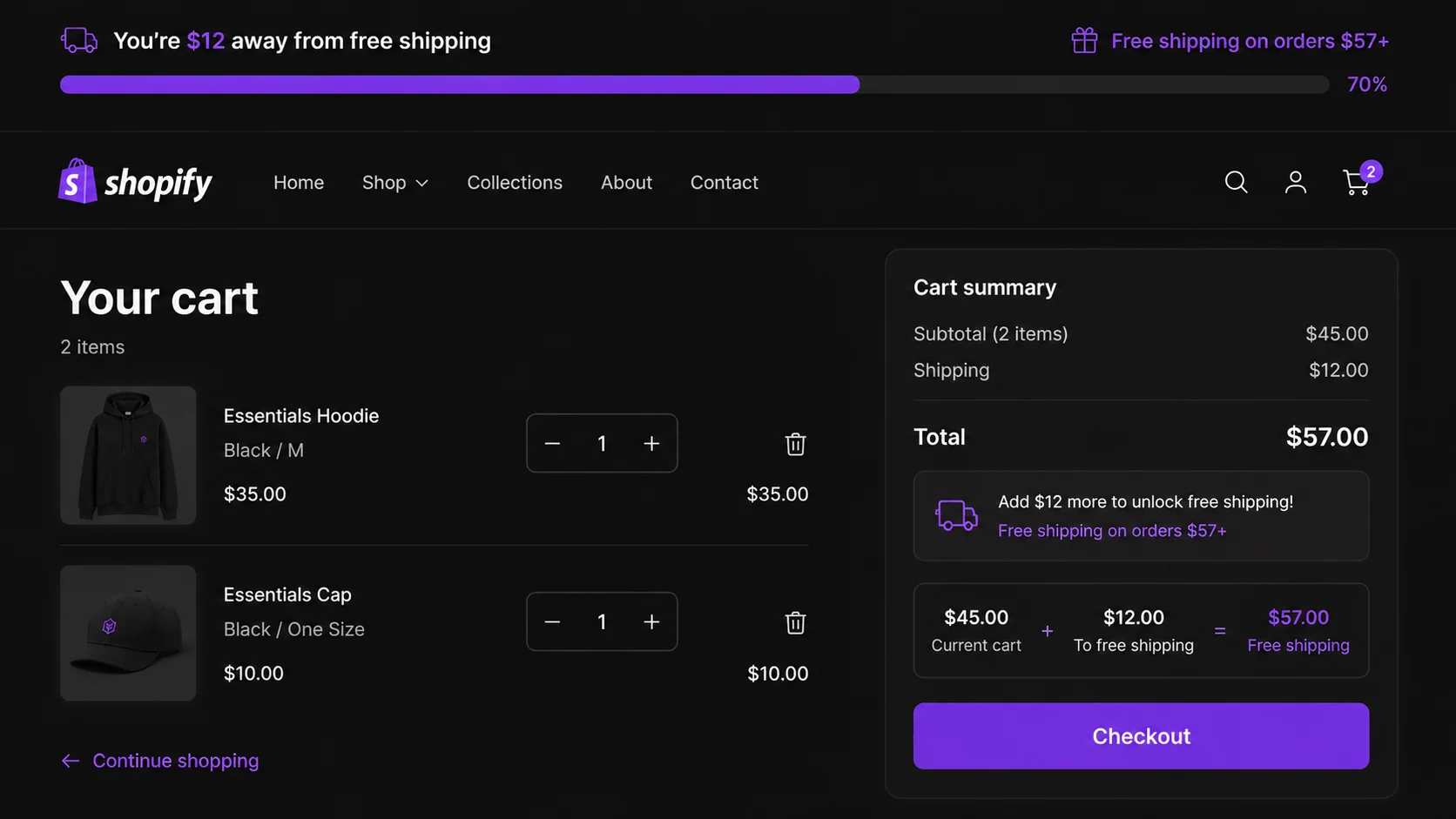
- Ideal threshold = current AOV × 1.2 to 1.3 (e.g., $45 AOV → $54–$58 threshold)
- 90% of consumers list free shipping as their top reason to shop online (NRF)
- A visible free shipping bar lifts AOV by 15–30% (Baymard Institute)
- Message copy matters: "You're $8 away" outperforms "Free shipping on orders over $50"
- A/B test in 2-week windows, adjusting in $5 increments until 40–60% of orders clear the threshold
Free shipping is the #1 purchase driver — and most stores set the threshold wrong
Free shipping isn't just a nice perk. It's the dominant factor in online purchase decisions. The National Retail Federation has consistently found that 90% of consumers name free shipping as their top motivator when shopping online. Baymard Institute's cart abandonment research identifies unexpected shipping costs as the single most cited reason customers leave without buying — 49% of abandoners list it as their primary cause.
The problem isn't that stores don't offer free shipping. Most do. The problem is that they set the threshold arbitrarily — a round number like $50 or $75 that has no relationship to what customers actually spend. A threshold set too high demoralizes shoppers who feel the goal is out of reach. A threshold set too low gives away margin to customers who would have spent that amount anyway, producing zero AOV lift.
The fix is a formula, not a guess.
The formula: set your threshold 20–30% above your current AOV
The optimal free shipping threshold sits in the range where enough customers can reach it with one additional item, but few would have reached it without the incentive. Research from Baymard Institute and behavioral economics studies on goal gradient effects converge on the same answer: 20–30% above current AOV is the sweet spot.
Threshold = Current AOV × 1.3 (upper bound)
Example with real numbers: Your store's AOV over the last 30 days is $45. Applying the formula:
- Lower bound: $45 × 1.2 = $54
- Upper bound: $45 × 1.3 = $58.50 → round to $58
Set your threshold at $54 to start. A customer whose cart sits at $38 needs to add $16 of product to qualify — achievable with one mid-priced item. A customer at $48 needs just $6 more — a single low-cost add-on. That's the range where the progress bar becomes genuinely motivating.
How to calculate your current AOV in Shopify Analytics (3 steps)
Before setting any threshold, get your actual AOV from Shopify. Don't guess or use a remembered number — pull it fresh from the last 30 days, since AOV shifts with seasonality and product mix changes.
Open Shopify Analytics → Reports
From your Shopify Admin sidebar, click Analytics, then Reports. Under the "Sales" section, open Sales over time. Set the date range to the last 30 days.
Find Total Sales and Total Orders
At the top of the report you'll see summary cards: Total Sales and Orders. Note both numbers. If you don't see an AOV card directly, divide Total Sales by Orders manually.
Calculate and apply the formula
Divide Total Sales by Orders to get your AOV. Multiply by 1.2 and 1.3 to get your threshold range. Round to the nearest clean dollar. Write it down — you'll need it for the PopBoost setup in the next section and for your Shopify Shipping settings.
How to configure the free shipping bar in PopBoost (step-by-step)
PopBoost's free shipping bar setup guide covers every configuration option in detail. Here's the condensed version to get your threshold live today.
Install PopBoost from the Shopify App Store
Install PopBoost on the free plan. No credit card required. The Free Shipping Bar widget is available at no cost — you can run it indefinitely on the free tier.
Open the Free Shipping Bar widget and set your threshold
In the PopBoost admin, click Free Shipping Bar. Enter the threshold amount you calculated above. This is the cart subtotal at which free shipping unlocks. Set the currency to match your store's default currency.
Write your three message states
The bar shows three distinct messages. Configure all three: Initial (cart is empty or just started — "Free shipping on orders over $54!"), In-progress (cart has items but hasn't reached the threshold — use the dynamic variable "You're $[X] away from free shipping!"), and Unlocked (threshold reached — "You've unlocked free shipping!"). The in-progress state does the most conversion work — see the copy section below.
Match the threshold in Shopify Shipping settings
Go to Shopify Admin → Settings → Shipping and Delivery. Edit your shipping zones and add a free shipping rate with a minimum order subtotal matching your PopBoost threshold exactly. If the bar shows $54 but checkout charges shipping until $60, customers feel deceived. The numbers must match.
Enable the App Embed in your theme
Go to Online Store → Themes → Customize → App Embeds. Toggle PopBoost on. The bar appears in the announcement bar position sitewide and updates in real time as customers add or remove items. For cart-drawer placement, add the PopBoost App Block inside your cart drawer section in the Theme Editor.
The copy that actually moves customers: answer-first progress messages
The exact wording of your in-progress bar message has a larger impact on conversion than most merchants expect. The difference between good and mediocre copy here is measurable in AOV percentage points.
Use dynamic progress language, not static threshold statements.
| Weak copy | Strong copy | Why it works |
|---|---|---|
| Free shipping on orders over $54 | You're $8 away from free shipping | Progress framing activates goal gradient effect |
| Add $8 to qualify for free shipping | Almost there — just $8 more for free shipping! | Emotional proximity ("almost") increases urgency |
| Free shipping threshold: $54 | Add one more item to ship for free | Concrete action instruction removes ambiguity |
| (no unlocked message) | You've unlocked free shipping! | Positive reinforcement cements the purchase decision |
The most important rule: always show the dollar amount remaining ("$8 away"), not the total threshold ("over $54"). The remaining amount is a gap to close — it activates action. The total threshold is just a number with no motivating relationship to the customer's current cart state.
The announcement bar placement of the free shipping progress bar benefits from this copy approach especially — it's the first thing a customer sees on every page, so the message needs to communicate progress and proximity immediately.
Set your threshold and go live in 5 minutes
PopBoost's Free Shipping Bar widget is on the free plan — no credit card, no time limit. Configure your calculated threshold, write your three messages, and enable App Embeds. The bar is live on your store before your next coffee gets cold.
Install PopBoost free →Free plan available · no credit card required · works with all Shopify themes
How to A/B test your free shipping threshold (2-week windows, $5 increments)
No formula produces the perfect threshold on the first try. Every store's product mix, traffic source, and customer psychology is different. The formula gets you into the right range — iteration gets you to the optimal number. Here's a structured testing process.
Establish your baseline (week 0)
Before enabling the free shipping bar, record your 30-day AOV, your average items per order, and your cart abandonment rate from Shopify Analytics. These are your control metrics. Without this baseline, you can't measure the bar's effect.
Enable the bar at your calculated threshold (weeks 1–2)
Set the threshold using the AOV × 1.2 formula and let it run for exactly 14 days. Don't change anything during this window — you need clean data. After 14 days, pull your AOV and calculate what percentage of orders cleared the threshold (Orders above threshold ÷ Total orders).
Interpret the results and adjust in $5 increments
Target: 40–60% of orders should be clearing the threshold. If fewer than 20% of orders clear it, the threshold is too high — lower it by $5. If more than 80% of orders clear it, the threshold is too low — raise it by $5. Make one change, then run another 2-week window. Repeat until you land in the 40–60% range.
Update seasonally
AOV rises naturally during Q4 (Black Friday, Cyber Monday, Christmas). If your AOV increases from $45 to $62 in November, your optimal threshold shifts from $54 to $74. Recalculate every 90 days — or at the start of each major retail season — and update both PopBoost and your Shopify shipping settings together.
Common mistakes that kill free shipping threshold performance
Setting the threshold too high (80%+ above AOV)
If your AOV is $45 and you set a $80 threshold "to protect margins," you've made the goal feel impossible for the majority of your customers. The progress bar fills to 56% and then customers give up — the psychology of goal gradient works in both directions. A half-filled bar with a distant goal is demoralizing, not motivating. The right threshold creates achievable stretch, not an unattainable target.
Mismatching the bar threshold and the Shopify shipping rate
The free shipping bar says $54. The checkout charges $7.99 shipping on a $54 order because the actual Shopify rate is set to $55. This destroys trust at the worst possible moment — after the customer has already made the effort to reach the threshold. Always set both numbers identically and test the checkout flow after any threshold change.
Not updating the threshold after it starts working
The free shipping bar succeeds — your AOV rises from $45 to $56. That's great. But now 85% of your orders are clearing the $54 threshold, which means you're giving free shipping to nearly everyone with no incremental AOV lift. The threshold needs to follow the AOV upward. Treat it as a living number, not a one-time configuration. This connects directly to Shopify conversion rate optimization — the best-performing stores iterate continuously, not just at launch.
Using static copy instead of dynamic progress messaging
Displaying "Free shipping on orders over $54" as a static banner in the announcement bar gives customers information but no motivation. The behavioral mechanics that drive AOV lift — goal gradient effect, progress visibility, loss aversion — only activate when the copy reflects the specific gap remaining. Use the dynamic "$[X] away" variable in every in-progress state. Also relevant for your overall cart abandonment reduction strategy — progress language at the cart stage recovers customers who would otherwise leave.
Free shipping threshold FAQ
What is the best free shipping threshold for Shopify?
The best threshold is 20–30% above your current average order value, not a round number you picked arbitrarily. Calculate it: current AOV × 1.2 gives you the lower bound, × 1.3 gives you the upper bound. Start at the lower bound, measure for two weeks, and adjust in $5 increments until 40–60% of your orders clear the threshold. That's the zone where you get maximum AOV lift with minimum margin sacrifice.
How do I add a free shipping progress bar to Shopify?
Install PopBoost (free plan available). In the PopBoost admin, open the Free Shipping Bar widget, set your threshold, and write your three message states. Then go to Online Store → Themes → Customize → App Embeds and toggle PopBoost on. The bar appears sitewide and updates in real time as customers add items to cart — no code required. For a detailed walkthrough, see the free shipping bar setup guide.
Does free shipping increase conversion rate?
Yes, substantially. The NRF reports 90% of consumers cite free shipping as their top online shopping incentive. Baymard's checkout research shows shipping cost surprises cause 49% of cart abandonments. Offering free shipping above a threshold — especially when paired with a visible progress bar — reduces both abandonment and increases the percentage of sessions that result in a completed order. For the full picture, see Shopify conversion rate optimization.
How often should I update my free shipping threshold?
Review it every 90 days and update it seasonally. After the initial A/B testing phase, check whether your percentage of orders clearing the threshold has drifted above 60% (a signal to raise the threshold) or below 20% (a signal to lower it). Always recalculate at the start of Q4, when holiday shopping raises AOV across virtually every product category.
What if I have multiple product price ranges?
Use a blended sitewide AOV as your baseline, but consider collection-specific thresholds using PopBoost's targeting rules. Show a $35 threshold on pages where customers browse $8–$20 accessories, and a $75 threshold on pages where they browse $50–$90 products. This keeps the stretch goal proportional regardless of which part of your catalog the customer is shopping. A sticky add to cart bar paired with the free shipping bar reinforces the threshold reminder as customers scroll through product pages — a combination that drives measurable lift on both AOV and conversion rate.
