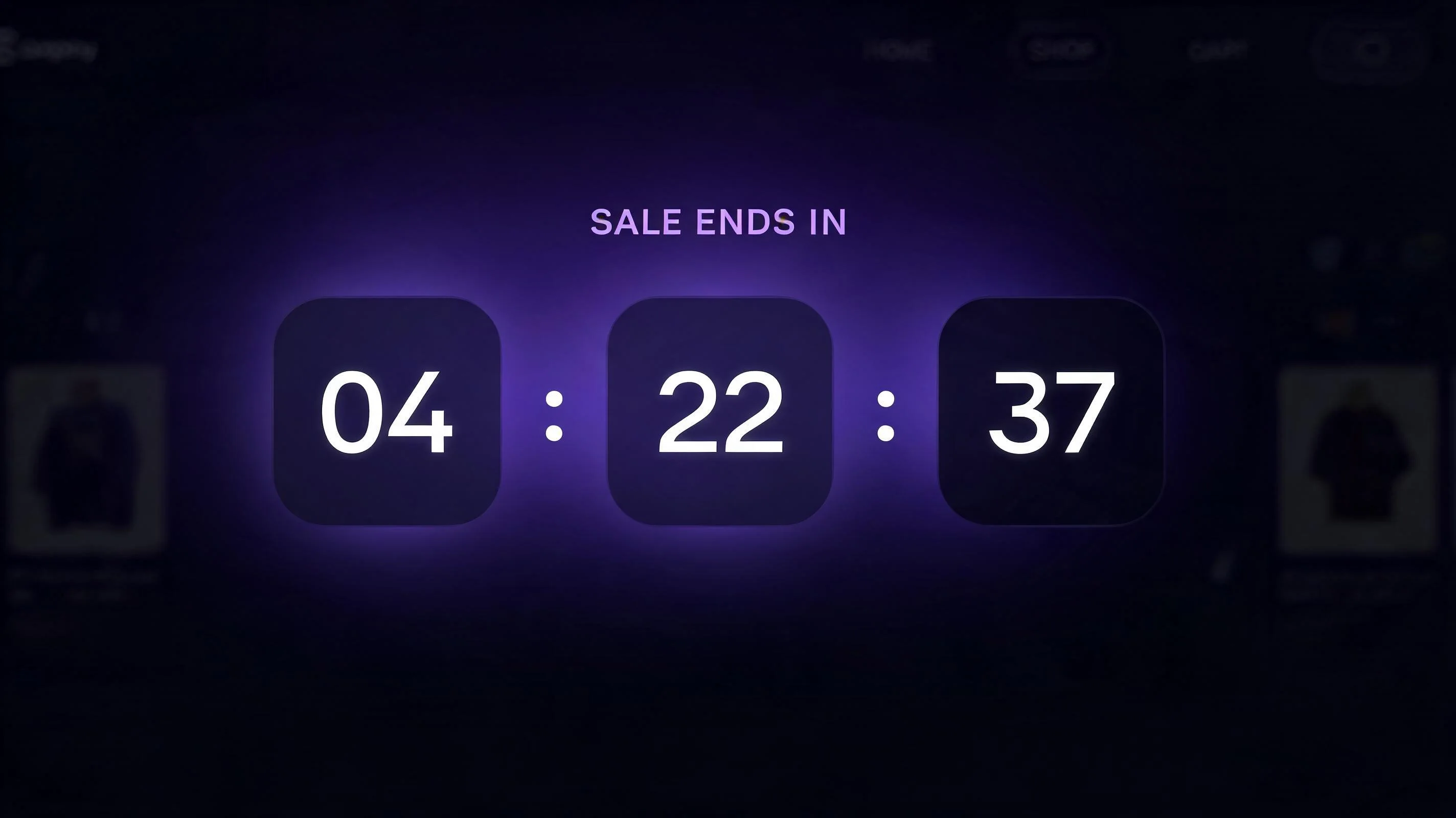
Why urgency works: the psychology of deadlines
Urgency works because of loss aversion — one of the most robust findings in behavioral economics. Kahneman and Tversky demonstrated that people feel the pain of a loss approximately twice as intensely as the pleasure of an equivalent gain. A countdown timer doesn't promise something positive; it threatens something negative: the end of a deal, the disappearance of an opportunity, the chance that someone else gets the item first.
Applied to ecommerce, this means "Sale ends in 4 hours 22 minutes" is more motivating than "Get this great deal." The first triggers loss aversion; the second is just marketing copy.
The second mechanism is decision simplification. Many visitors abandon carts not because they've decided not to buy, but because they've decided to decide later. A deadline breaks that pattern by making "later" more costly. "I'll think about it" becomes "if I wait, the price goes up tomorrow" — and the decision gets made now.
Research supports this. A 2024 analysis of Shopify stores by Littledata found that stores with urgency-based widgets had an average checkout completion rate of 52%, compared to 44% for stores without urgency signals — an 18% relative improvement. The effect was most pronounced for visitors who had already added to cart (the strongest intent signal) but had not yet checked out.
| Feature | PopBoost | Hurrify | Countdown Timer Bar | Essential Countdown Timer |
|---|---|---|---|---|
| Price | Free + $19/mo | $9.99/mo | $7.99/mo | $6.99/mo |
| Flip style timer | ✓ | ✓ | ✗ | ✓ |
| Bar style timer | ✓ | ✗ | ✓ | ✓ |
| Auto-schedule by product tag | ✓ | ✗ | ✗ | ✗ |
| Match store theme colors | ✓ | ✗ | ✗ | ✗ |
| No code install | ✓ (Theme App Extension) | ✓ | ✓ | ✓ |
| Bundle with other widgets | ✓ (7 widgets in one app) | ✗ | ✗ | ✗ |
| Mobile-optimized | ✓ | ✓ | ✓ | ✓ |
Real urgency vs. fake urgency — and why it matters
Real urgency is tied to an actual constraint: a sale that ends at a specific date and time, limited inventory that is genuinely running low, or a shipping cutoff deadline for a specific delivery date. When the countdown reaches zero, something real happens — the price changes, the item goes out of stock, or the offer expires.
Fake urgency uses a timer that resets for each visitor — for example, every visitor gets a "24-hour flash sale" timer that starts fresh when they land on the page. The problem: this is immediately detectable. Opening the page in incognito shows the same "24 hours" as the first visit. Sharing the link with a friend shows them the same "24 hours." Any visitor who notices this — and many do — will not trust anything else on your site.
The research on fake urgency is damning. A 2023 Baymard survey found that 31% of shoppers have noticed a countdown timer reset after refreshing a page, and of those, 74% said it made them less likely to buy from that store. Fake urgency doesn't just fail to convert — it actively drives away the shoppers most likely to have bought otherwise.
Types of countdown timers for Shopify
Flip countdown timer
A flip countdown timer displays hours, minutes, and seconds as individual digit blocks that "flip" as the countdown progresses — resembling the mechanical departure boards found in airports and train stations. The visual flip animation is distinctive and attention-grabbing; it creates movement on an otherwise static page, drawing the eye immediately.
Flip timers are well-suited for product pages with a high-drama aesthetic: limited-edition releases, high-ticket items, or any context where you want the countdown to feel like a major event. They work best with a strong label above the digits: "Flash sale ends in:" followed by DD HH MM SS blocks.
The flip timer's weakness is subtlety — it has none. On a clean, minimal theme, a flip timer can feel like visual noise. It also requires more horizontal space, which can create layout issues on mobile if not carefully configured.
Bar countdown timer
A bar countdown timer displays the remaining time as a horizontal progress bar that depletes toward zero, typically with a text label: "Offer ends in 3h 45m." The bar format is cleaner, more minimal, and integrates naturally into any theme without disrupting the visual hierarchy.
Bar timers are better for stores with a polished, premium aesthetic, and for contexts where the deadline is days rather than hours away — the bar format reads well at longer time ranges without the intense urgency signaling of flip digits. They also work particularly well in the announcement bar at the top of the page, where the bar format mirrors the bar widget itself.
PopBoost's Countdown Timer widget supports both styles. You choose the format in the widget settings, alongside the end date, label text, colors, and whether to show days alongside hours/minutes/seconds.
Shipping cutoff countdown
A shipping cutoff countdown is a specialized format that shows how much time remains to order before a specific delivery date cutoff: "Order in the next 2h 14m to get it by Thursday." This format is extremely effective for gift-season shopping (Black Friday, Christmas, Valentine's Day) when the deadline is tied to something the buyer cares about deeply — receiving the item in time for an occasion.
Shipping cutoff timers require coordination with your fulfillment workflow, as the promised delivery date must be achievable. If you offer same-day or next-day shipping from your warehouse, these timers can be used year-round, not just during seasonal campaigns.
Where to place a countdown timer on your Shopify store
Placement is the second most important decision after the deadline itself.
Product page — above or below the Add to Cart button. This is the highest-impact placement. The visitor is at their moment of maximum purchase intent — reviewing the product, considering whether to buy — and the timer fires at exactly the right moment. Place it within the product form, not below the product description where many visitors won't scroll.
Cart page. A cart-page timer (showing when the sale ends) catches buyers who added to cart but haven't checked out. Cart abandonment rates average 69.8% (Baymard, 2025), and many of those abandoned carts are from genuinely interested shoppers who got distracted. A countdown on the cart page reminds them why they need to act now.
Announcement bar. A countdown in the announcement bar appears on every page of your store and creates consistent urgency throughout the shopping session. This is the right placement for a sitewide sale. Use a bar-style timer here — it fits the announcement bar format naturally. PopBoost's announcement bar widget can display countdown text alongside a CTA link.
Avoid: homepage hero, checkout page. Homepage heroes are branding-first placements — urgency messaging there can feel jarring before the visitor has even seen your products. The Shopify checkout page doesn't support App Blocks in standard plans, so you can't add countdown timers there anyway.
How to set up a countdown timer in PopBoost
Install PopBoost
Install PopBoost from the Shopify App Store. The app adds itself as a Theme App Extension — no code changes, works with every modern Shopify theme that supports App Blocks.
Open the Countdown Timer widget
In the PopBoost admin, click the Countdown Timer card. Toggle the widget on. Set the end date and time using the date picker — choose your actual sale end date. Set the label text ("Sale ends in:", "Flash deal expires:", "Offer ends:"). Choose flip or bar style. Set colors to match your theme or use Auto Match.
Add the App Block to your theme
Go to Online Store → Themes → Customize. Click into your Default Product template. In the block list, click Add Block and find the PopBoost Countdown Timer block. Drag it to your preferred position — typically just above the Add to Cart button. Save.
Configure per-product visibility (optional)
If you want the timer to only appear on products included in the sale — not on your entire catalog — use Shopify's template system to create a "sale-product" template with the timer block enabled, and assign that template only to sale products. This prevents the timer from appearing on non-sale items and creating false urgency.
Set the post-expiry behavior
In PopBoost's countdown timer settings, choose what happens when the timer reaches zero: hide the widget entirely, display a "Sale ended" message, or redirect to a collection page. Hiding is the cleanest option — the page returns to its normal state when the promotion is over.
Add a countdown timer to your Shopify store in 5 minutes
PopBoost includes the Countdown Timer plus 6 other conversion widgets — $19/month flat, 14-day free trial, flip or bar style, works with every theme.
Install PopBoost free →14-day free trial · no credit card required · works with all Shopify themes
Countdown timers and product drops
Countdown timers pair especially well with product drops — limited-quantity releases with a fixed release date. If you're planning a new product launch with a defined go-live date, a countdown timer on the product page (while it's set to "coming soon") builds anticipation during the pre-launch window.
For full drop mechanics — a referral-powered waitlist where customers earn queue position by inviting friends — EZDrop is purpose-built for this use case. EZDrop's storefront widget shows a live waitlist count and countdown to the release date directly on your Shopify product page. The two tools serve different stages of the same launch: EZDrop handles the waitlist and launch-day email notification; PopBoost handles the conversion widgets after the drop goes public and general shoppers land on your store.
If you're also managing inventory for a drop — tracking exactly how many units you have and monitoring restock timelines — EZStock gives you inventory tracking with reorder point alerts, supplier management, and purchase order workflows. Knowing your real inventory number is essential for setting an accurate stock countdown alongside your timer.
Common countdown timer mistakes to avoid
Using fake (evergreen) timers. Already covered above — don't do it. If you need to run urgency without a real deadline, use stock scarcity ("Only 5 left") or social proof ("47 sold today") instead. Both are real signals you can show honestly.
Timer on every product, always. A countdown timer that's visible year-round on every product ceases to create urgency and becomes invisible noise. Use timers only during actual promotions, then remove them when the promotion ends.
Timer below the fold on mobile. If your product description is long, the Add to Cart button and surrounding elements may be pushed below the fold on mobile. Always test your timer placement on a real mobile device, not just the desktop preview. The timer must be visible above the Add to Cart button — or immediately adjacent to it — to have its full effect.
Vague deadline copy. "Limited time offer" is not a countdown timer; it's marketing copy that shoppers have been ignoring for decades. Always show a specific number: "Sale ends in 3h 44m 22s" or "Offer expires May 28 at 11:59 PM EST." Specificity is what makes a deadline feel real.
Timer without a reason. A timer without context raises questions: why does this sale end tonight? Consider adding a brief label that answers this: "Flash Sale · Weekend only" or "Launch price · ends when we hit 200 orders." A reason makes the deadline feel legitimate, not arbitrary.
Measuring countdown timer performance
To isolate the impact of your countdown timer, track these metrics during the promotion period vs. the same period without a timer:
- Product page to cart rate — the most direct signal. Did more visitors add to cart while the timer was visible?
- Cart abandonment rate — did cart abandonment decrease during the promotion? Lower abandonment with a timer is strong evidence it's working.
- Revenue per session — the composite metric. Higher revenue per session with the timer running confirms net positive impact.
- Peak conversion hours — countdown timers tend to drive conversion spikes in the final hours before expiry. Check your hourly conversion data: a spike in the last 2–3 hours of a timed sale is a strong confirmation signal.
Frequently asked questions about Shopify countdown timers
Does a countdown timer increase Shopify conversions?
Yes, when the deadline is real. Countdown timers activate loss aversion and simplify the decision by making "wait and see" more costly than "buy now." Analysis of Shopify stores shows checkout completion rates averaging 8–12% higher during timed promotions. The effect is strongest in the final 4 hours of a sale.
What is the difference between a flip timer and a bar timer?
A flip timer shows countdown digits in flipping blocks — dramatic and attention-grabbing, suited for high-energy promotions. A bar timer shows a depleting progress bar with a text label — cleaner and more minimal, suited for premium themes and longer-duration promotions. PopBoost supports both styles, configurable in the widget settings.
Are evergreen countdown timers effective?
No. Evergreen timers (which reset per visitor) are detectable and destroy trust when noticed. 31% of shoppers have noticed a timer reset after refreshing, and 74% of those became less likely to buy. Use real deadlines only.
Where should I place a countdown timer on Shopify?
The highest-impact placement is directly above or below the Add to Cart button on the product page. Also effective: the cart page (catches abandoners) and the announcement bar (creates sitewide urgency during a sale). Avoid the homepage hero and checkout page.
How do I add a countdown timer to Shopify without coding?
Use PopBoost's Countdown Timer App Block. In Online Store → Themes → Customize → your product template, click Add Block and select the PopBoost Countdown Timer. Set your end date, style, and label. No coding required. Works with all themes that support Shopify App Blocks.
For a complete overview of all the urgency and conversion widgets available in one app, see the FOMO marketing for Shopify guide. To understand how countdown timers fit into a broader conversion optimization strategy, read the Shopify CRO checklist.
