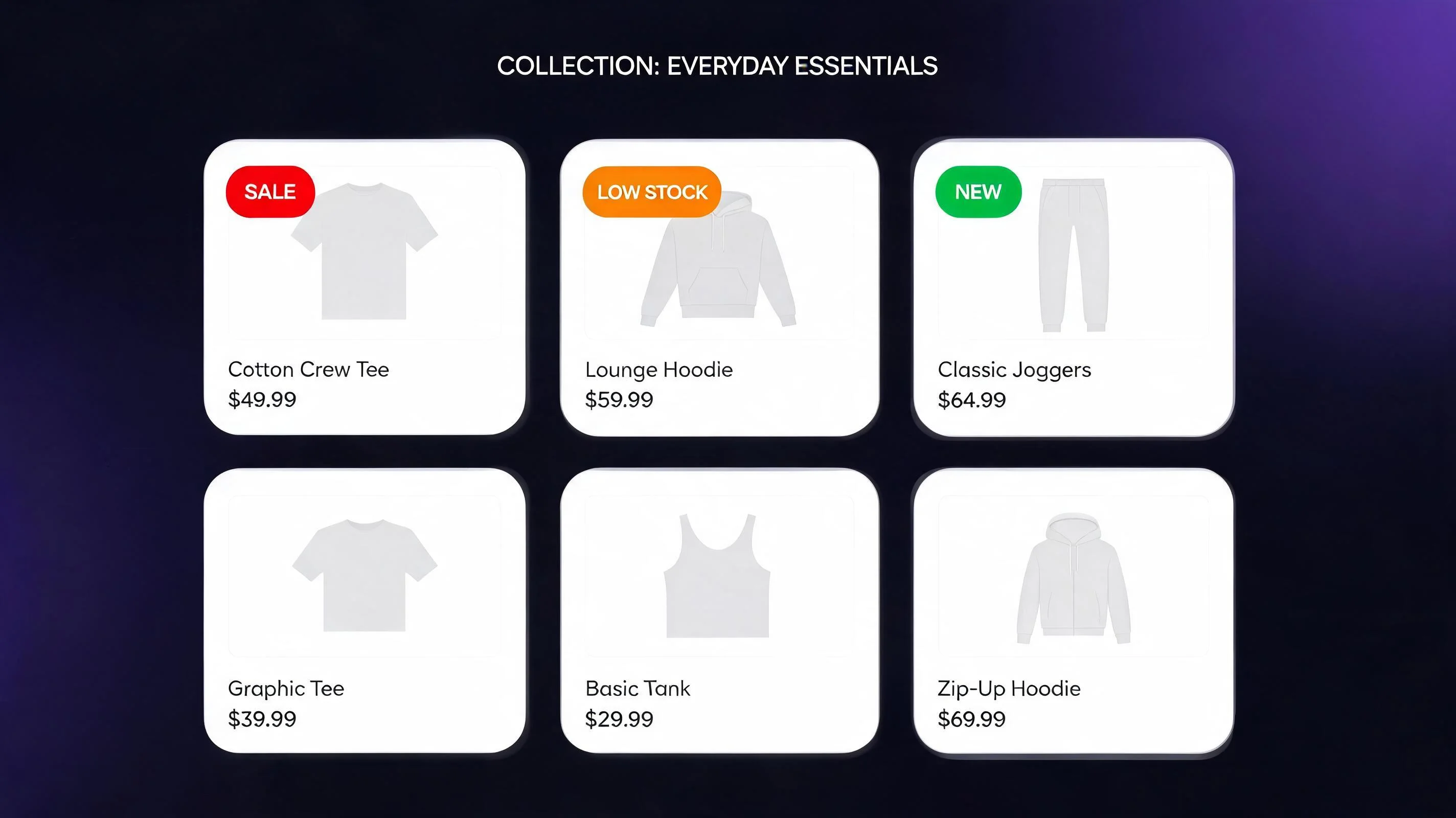
What are product badges on Shopify?
A product badge is a small overlaid label that appears on a product image — typically in a corner — in collection pages, search results, and product cards. Common examples:
- SALE — applied to discounted products, showing the item is marked down
- NEW — applied to recently added products, signaling fresh inventory
- LOW STOCK — applied when inventory falls below a set threshold (e.g., fewer than 8 units)
- BESTSELLER — applied to your top-selling products, providing social proof
- HOT or TRENDING — applied to products with recent high view or purchase velocity
Badges are visual merchandising cues. In a physical retail environment, a product with a bright "SALE" sticker on the shelf is more likely to be picked up and considered. Shopify product badges replicate this mechanism in a digital collection — they create visual hierarchy where there would otherwise be a flat grid of identical-format product cards.
Without badges, a customer scanning a 24-product collection page has no signal to guide their attention. With the right badges applied to the right products, attention is directed toward your sale items, your bestsellers, and your scarce inventory — the products you most want to sell.
| Badge Type | Best Use Case | Conversion Effect |
|---|---|---|
| SALE (% off) | Active promotions with real discount | High — immediate price signal |
| NEW | Products added in last 30–60 days | Medium — novelty drives clicks |
| LOW STOCK | < 10 units remaining | High — urgency; strongest on high-demand items |
| BEST SELLER | Top 5–10% of SKUs by units sold | High — social proof signal |
| LIMITED EDITION | Fixed production run | High — scarcity + exclusivity |
| STAFF PICK | Curated recommendation | Medium — trust signal for discovery |
| BACK IN STOCK | Recently restocked after stockout | Medium-High — re-engages previous visitors |
The visual science behind badges: why they work
Pre-attentive processing. Certain visual properties — color, shape, motion — are processed by the brain before conscious attention is engaged. A red badge on a product image in a neutral grid triggers pre-attentive detection in under 250 milliseconds. The customer's eye is drawn to it before they're even "looking" for anything. This is why badge placement and color are not decoration — they're attention engineering.
Information efficiency. A badge communicates a category of value in a single word or two — "SALE," "LOW STOCK" — that would otherwise require the customer to click through, read the product description, and check the price. Badges lower the cognitive cost of scanning a collection page. When a customer can identify "discounted items" and "scarce items" at a glance, they make faster decisions and click with more intent.
Scarcity activation. LOW STOCK badges work through the same mechanism as scarcity signals generally: they imply that others have been buying, that the supply is limited, and that waiting risks missing out. A product that appears in a collection with a LOW STOCK badge looks more desirable than the same product without — not because its attributes changed, but because scarcity signals desirability.
The four core badge types: when to use each
SALE badge
Apply to any product with an active Shopify discount — compare-at price set above the selling price. The SALE badge should display the percentage saved ("SALE" or "−20%") in a high-contrast format. Red is the most effective color; research consistently shows red draws faster initial attention than any other color and is universally associated with discounts in retail contexts.
Apply automatically to any product where compare_at_price > price in your Shopify data. Don't apply SALE to non-discounted products — this is one of the trust-destruction patterns that consumers notice and resent.
NEW badge
Apply to products added within the last 14–30 days (configurable). The NEW badge serves repeat customers most strongly — someone who visited your store 3 weeks ago and is now returning immediately wants to know what's changed. A NEW badge on recent additions helps them find it without browsing the entire catalog.
Green or teal is the most effective color for NEW badges — it reads as "fresh" without urgency. Avoid using red for NEW (reserved for SALE) or orange (reserved for LOW STOCK in most merchant configurations). Keep the badge duration short: if a product is still "NEW" after 45 days, the label starts to feel stale.
LOW STOCK badge
Apply when real inventory falls below a configured threshold — typically 1–10 units. The threshold should be set based on your typical sales velocity. If you sell 5 units per day, a "LOW STOCK" trigger at 10 units represents 2 days of inventory — genuinely urgent. If you sell 2 units per month, 10 units represents 5 months of inventory — not urgent at all, and the badge would be misleading.
For dynamic LOW STOCK badges to work accurately, your inventory data must be reliable. If you're managing inventory across multiple locations or with purchase orders in transit, those in-transit units should not inflate the "available" count used to suppress the LOW STOCK badge. EZStock tracks inventory levels, reorder points, and purchase order status across your Shopify store — it can help you maintain accurate inventory data that makes your LOW STOCK badges honest. An inaccurate LOW STOCK badge (showing low stock when you have plenty) is a form of false urgency that damages trust.
BESTSELLER badge
Apply to your top 3–5 products by revenue or unit sales in the last 30 days. BESTSELLER functions as social proof at the collection level — it tells a new visitor "many people have chosen this item" before they've clicked through to see reviews. This badge is particularly effective for stores with large catalogs, where new visitors face a paradox of choice and benefit from social proof cues to narrow their consideration set.
Rotate BESTSELLER status monthly to keep it accurate and to surface different products. A product that's been your "bestseller" for 8 months without changing may have lost its novelty — let new products earn the badge through recent sales.
Badge design: size, position, and color guidelines
Size: Badges should be large enough to read at a glance but small enough not to obscure the product image. Target 20–28px tall, with padding that keeps text from feeling cramped. On mobile, scale up slightly (22–30px) to account for smaller viewports.
Position: Top-left corner is the most common and most effective position. Reading direction in English (and most Western languages) starts top-left — the eye lands there first. Top-right works as a secondary position if you need two badges on one product (e.g., SALE + LOW STOCK). Avoid bottom positions — they're often cut off in grid card layouts that crop product images.
Color: Use a consistent color system across your store. Recommended: red for SALE, green for NEW, orange for LOW STOCK, purple or gold for BESTSELLER. Maintain high contrast with white text. Avoid transparency — a semi-transparent badge looks cheap and is harder to read. Match the badge border radius to your theme's overall design language (sharper for editorial brands, rounder for friendly/consumer brands).
How to add product badges in PopBoost
Install PopBoost and open the Product Badge widget
Install PopBoost from the Shopify App Store. In the PopBoost admin, click the Product Badge widget card. Toggle it on.
Configure badge rules
For each badge type, configure the condition: SALE badge → apply when compare_at_price is set; NEW badge → apply to products created in the last N days (set N to 14–30); LOW STOCK badge → apply when inventory is below N units (set N based on your sales velocity); BESTSELLER → manually tag products with a "bestseller" Shopify tag. Set the badge text, color, and position for each type.
Add the App Block to your collection template
In Online Store → Themes → Customize, navigate to your Collection template. Click into the product grid and add the PopBoost Product Badge App Block. Position it to overlay the product image. The badge will now appear on all collection pages, automatically applying to products that meet your configured conditions.
Add to the product page template
Repeat the App Block addition in your Default Product template — the badge should also appear on the individual product page's featured image, reinforcing the signal for visitors who navigated directly to the product URL rather than through a collection page.
Verify badge accuracy on a staging theme
Before publishing, verify that SALE badges only appear on genuinely discounted products, LOW STOCK badges only appear on actually low-inventory items, and NEW badges match your date threshold. Test by checking a product you know has >10 units in stock — it should not show LOW STOCK.
Add product badges to your Shopify store — no coding required
PopBoost's Product Badge widget is available on the free plan (one widget active at a time, with badge). Pro ($19/month) unlocks all 7 widgets simultaneously — 14-day free trial, no credit card required.
Install PopBoost free →Free plan available · 14-day Pro trial · no credit card required · works with all Shopify themes
LOW STOCK badges and inventory management
The LOW STOCK badge is only as trustworthy as your inventory data. If your Shopify inventory is not accurately maintained — if you're counting units that haven't arrived yet, or missing units that were damaged — your badge will fire inaccurately, showing LOW STOCK when you have plenty, or failing to show it when you're genuinely running low.
Accurate inventory is a prerequisite for honest scarcity marketing. EZStock manages inventory at the variant level, tracks reorder points, handles purchase orders with DRAFT→SENT→RECEIVED status tracking, and provides daily inventory health metrics. When your inventory data is clean in EZStock, your PopBoost LOW STOCK badge reflects reality — which is the only version that builds rather than erodes trust.
See the EZStock guide to Shopify inventory KPIs for the specific metrics to monitor that underpin accurate badge triggering.
Common product badge mistakes to avoid
Applying SALE badges to non-discounted products. Some merchants apply SALE badges permanently as a "styling" choice. This is false advertising in the clearest sense — customers who click expecting a discount and find full-price products will abandon and will not return.
Low STOCK badge with inaccurate inventory. Already covered: your inventory data must be current. Manual inventory updates that lag behind real stock levels make your LOW STOCK badge unreliable — and shoppers who discover the mismatch will distrust every scarcity signal on your site.
Same BESTSELLER badge for 12 months. If the same 5 products have been your "bestsellers" for a year and your catalog has changed, rotate the badge. A product that sold well 9 months ago but has been superseded by new arrivals shouldn't be labeled BESTSELLER in May.
Badges that overwhelm the product image. A badge should annotate the image, not dominate it. Keep the badge small enough that the product photo is still the primary visual element. Test on mobile — badges often scale poorly and can cover key product details at smaller viewports.
Measuring badge performance
- Collection page click-through rate by badge type — use Google Analytics or Shopify Analytics to compare click-through rates on products with badges vs. those without. Segment by badge type to see which performs best for your catalog.
- Product page conversion rate for badged vs. non-badged products — do visitors who clicked through after seeing a badge convert at a higher rate? They should — they arrived with higher intent, pre-signaled by the badge.
- Inventory turnover for LOW STOCK badged products — do LOW STOCK items sell out faster when badged? This is direct evidence of the scarcity mechanism working.
- SALE badge CTR vs. non-SALE badge CTR — compare click-through rates on discounted products (with SALE badge) vs. non-discounted products in the same collection. The lift attributable to the badge (vs. the discount itself) can be estimated by running a period without badges on sale products and comparing CTR.
Frequently asked questions about Shopify product badges
What are product badges on Shopify?
Product badges are overlay labels on product images that convey merchandising information at a glance: SALE (discounted), NEW (recently added), LOW STOCK (limited inventory), BESTSELLER (top seller). They increase collection page click-through rates by 15–35% by directing attention and communicating value without requiring a click-through.
Do product badges increase Shopify sales?
Yes. Eye-tracking studies and CTR data show badges increase clicks on collection pages by 15–35%. The conversion lift depends on badge type: SALE and LOW STOCK badges generate the strongest behavioral response because they activate price sensitivity and scarcity respectively.
How do I add product badges to Shopify?
Install PopBoost. In the PopBoost admin, configure badge conditions for each type (SALE, NEW, LOW STOCK, BESTSELLER). Add the Product Badge App Block to your Collection and Product templates in the Shopify Theme Editor. No code required.
What color should my LOW STOCK badge be?
Orange is the standard for LOW STOCK badges — it signals caution and urgency without the full alarm of red (which is best reserved for SALE). Keep text white on orange for maximum contrast. Avoid green (positive/fresh) or blue (neutral/informational) for a scarcity signal.
When should I show a LOW STOCK badge?
Show the LOW STOCK badge when real inventory is between 1 and 10 units. Set the exact threshold based on your sales velocity — if you sell 2 units/day, 10 units represents 5 days of stock, which is genuinely urgent. Never apply LOW STOCK when inventory is adequate; false scarcity destroys trust.
Product badges work best alongside other FOMO signals. See how they layer with countdown timers and social proof popups in the FOMO marketing for Shopify guide. For accurate inventory tracking that powers honest LOW STOCK badges, see EZStock.
