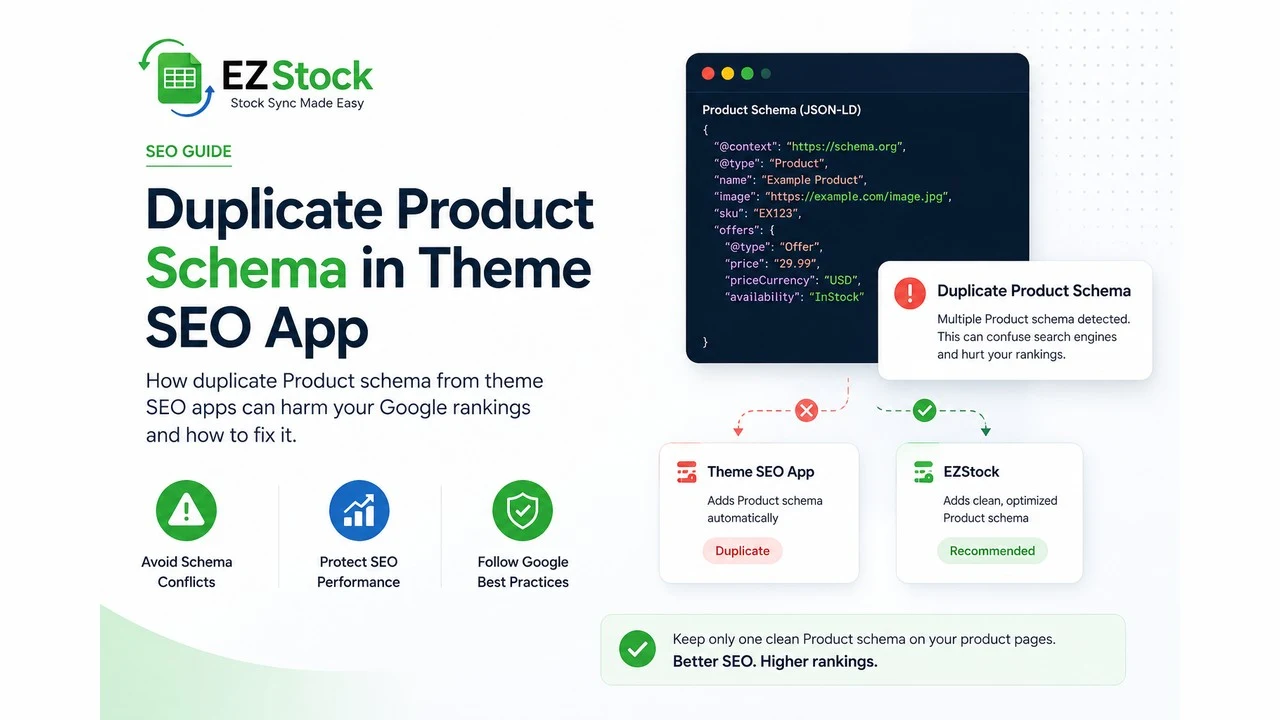
Short answer: your theme and an SEO or review app can each output a Product block in JSON-LD on the same page. Google reads all of them. If two blocks disagree on price, availability, brand, or identifier, Google is told two different stories about one product, which the Merchant Center misrepresentation policy can flag and suspend for. The fix is to keep one Product source, usually the theme's, and turn off Product markup in the app that duplicates it.
Structured data is supposed to make a product legible to a machine. One clean Product block tells Google the name, price, availability, brand, and a GTIN or MPN. The problem on Shopify is that more than one thing on the page wants to write that block. The theme ships its own product structured data. An SEO app adds its version to be thorough. A review app emits a Product so it can attach ratings. None of them knows the others exist.
Now the page has two or three Product blocks. Google does not pick one and ignore the rest. It reads every block on the page. When they all say the same thing, that is merely redundant. When they drift apart, it is a data conflict on the exact fields Google acts on.
Why Google treats this as misrepresentation
Merchant Center's misrepresentation policy has a simple core: the price and availability Google reads must match what a shopper sees on the landing page. A price mismatch or a stale in-stock flag is one of the most common reasons a store gets suspended from Google Shopping.
Two conflicting Product blocks create that mismatch on one page. Say your theme's block reads $49.00 / InStock and an app's block reads $39.00 / OutOfStock. A feed built from one won't match a page read from the other. Google cannot tell which is true, so the safe assumption on its side is that the listing misrepresents the product.
The three sources, and how to tell them apart
You do not need to guess blindly. Open the page source (right-click, View Page Source) and search for application/ld+json. Each match is a structured-data block. The shape of the block usually tells you where it came from:
- The theme's block carries a full
offersobject with price, currency, availability, and often a GTIN or MPN andshippingDetails. It is tied to the real variant. This is normally the one to keep. - A review app's block carries
aggregateRatingorreviewbut often no real offer, or an offer with no price. Judge.me, Loox, Okendo, and Stamped all do this to attach ratings to aProduct. - An SEO app's block is usually a lean
Productwith a name and price and little else, added to "improve SEO" without knowing the theme already did it.
The tell is the offer. Whichever block owns the complete, variant-accurate Offer is your source of truth. The others are candidates to disable.
How to pick one source and turn off the rest
The goal is one Product block on the page, with a full Offer that follows the real variant. In order:
- Keep the theme's Product schema if it has the complete Offer. Most modern Shopify themes emit correct product structured data on their own.
- Turn off Product/JSON-LD output in your SEO app. Most have a toggle labeled something like "Product structured data" or "Rich snippets for products." Leave the rest of the app on; you only want to stop the duplicate
Productblock. - For a review app, keep the ratings but not a whole Product block. The good versions inject
aggregateRatinginto the theme's existing Product node rather than emitting their own. If yours emits a separateProduct, look for a setting to disable its product markup, or contact support. - Re-check the page source and confirm exactly one
Productblock remains, with price and availability that match the visible page.
If your theme does not emit Product schema (some minimal themes don't), then do the opposite: keep the one app that does, and make sure only one does.
Check your own product page, free
The free Google Merchant Center Compliance Checker reads every Product JSON-LD block on a page separately and flags when they disagree on price, availability, brand, or identifier, plus price and stock mismatches against the visible page. It hints at which block looks like a review or SEO app, and gives a plain fix. It is a page-level check and does not log into Merchant Center. No signup, nothing stored.
Check my product for schema conflicts →Two parts of this are ongoing rather than one-time. Keeping availability accurate is an inventory job: if your schema says InStock while a variant is sold out, that is a mismatch even with a single Product block. EZstock keeps stock and availability in sync so your in-stock signal stays true for both shoppers and Google. And if you want the interactive version of this article, run your product URL through the Merchant Center checker and the AI Shopping Checker, which reads the same structured data from a discovery angle.
Frequently asked questions
Is it always bad to have two Product blocks? Not always. If they carry identical values, it is redundant, not a suspension risk. The danger is drift: the moment an app updates price or stock on its own schedule, the two blocks disagree. Keeping one source removes the possibility.
Will removing an app's Product schema hurt my rich results? No, as long as one correct Product block remains. Google needs one accurate source, not several. Duplicates do not add ranking value; they add risk.
My review stars disappeared after I disabled the app's schema. Now what? That app was emitting its own Product just to hold the rating. Look for a setting to inject aggregateRating into the theme's existing Product node instead, or pick a review app that does. You want the stars back inside the one true Product block, not in a second one.