Bundle vs. upsell vs. cross-sell: definitional clarity
Before optimizing your bundle conversion, it's worth being precise about what each term means, because they're often conflated:
- Bundle upsell — you're upgrading the customer's purchase from one item to a multi-item combination at a discount. The customer was going to buy Product A; now they're buying Products A + B + C for 15% less than the sum of individual prices. The discount is the mechanism.
- Cross-sell — you're suggesting a different additional product without a price incentive. "Customers who bought this also bought X." No discount required; the recommendation is the mechanism.
- Post-purchase upsell — a separate offer presented after checkout is complete. The customer has already paid; this is an incremental add-on. Requires post-purchase extension support.
Bundle upsells consistently outperform cross-sells for AOV lift because the discount creates a specific reason to act right now. Cross-sells expand category awareness; bundle upsells create purchase urgency. Use cross-sells for product discovery; use bundles when you want immediate cart value growth.
| Placement | Avg Conversion Rate | Best Bundle Type |
|---|---|---|
| Product page (below Add to Cart) | 8–14% of add-to-cart events | Fixed bundle (predefined) |
| Product page (mid-content) | 5–9% | Mix & match |
| Cart page (before checkout) | 12–20% | Fixed bundle with small discount |
| Post-purchase (thank you page) | 3–8% | Complementary product bundle |
| Email (7-day post-purchase) | 6–12% open-to-click | Replenishment bundle |
| Homepage featured section | 2–5% of homepage visitors | Bestseller bundle |
Widget placement: ranked by conversion rate
Bundle widget placement is one of the most impactful and easiest-to-change variables in bundle conversion. The same bundle with different placement on the product page can show 2–3× conversion rate differences.
To set placement in EZBundle, add the app block to your theme template in the Shopify theme editor and drag it to your preferred position. EZBundle's widget uses a standard app block with no fixed position requirement — you place it wherever your theme template allows app blocks to be inserted.
Copy that converts: five principles
1. Show the math explicitly
The bundle price must be compared directly to the sum of individual prices, and the saving must be computed and displayed. "Regular total: $87. Bundle price: $72. You save $15." is more effective than "15% off when you buy the bundle." Customers don't do percentage math quickly; dollars in hand are immediately meaningful.
The price comparison should be visual — a strikethrough on the regular price, a highlighted bundle price, and the saving shown in a contrasting color or badge. Don't make customers calculate the value; show them.
2. Lead with the bundle name, not the discount
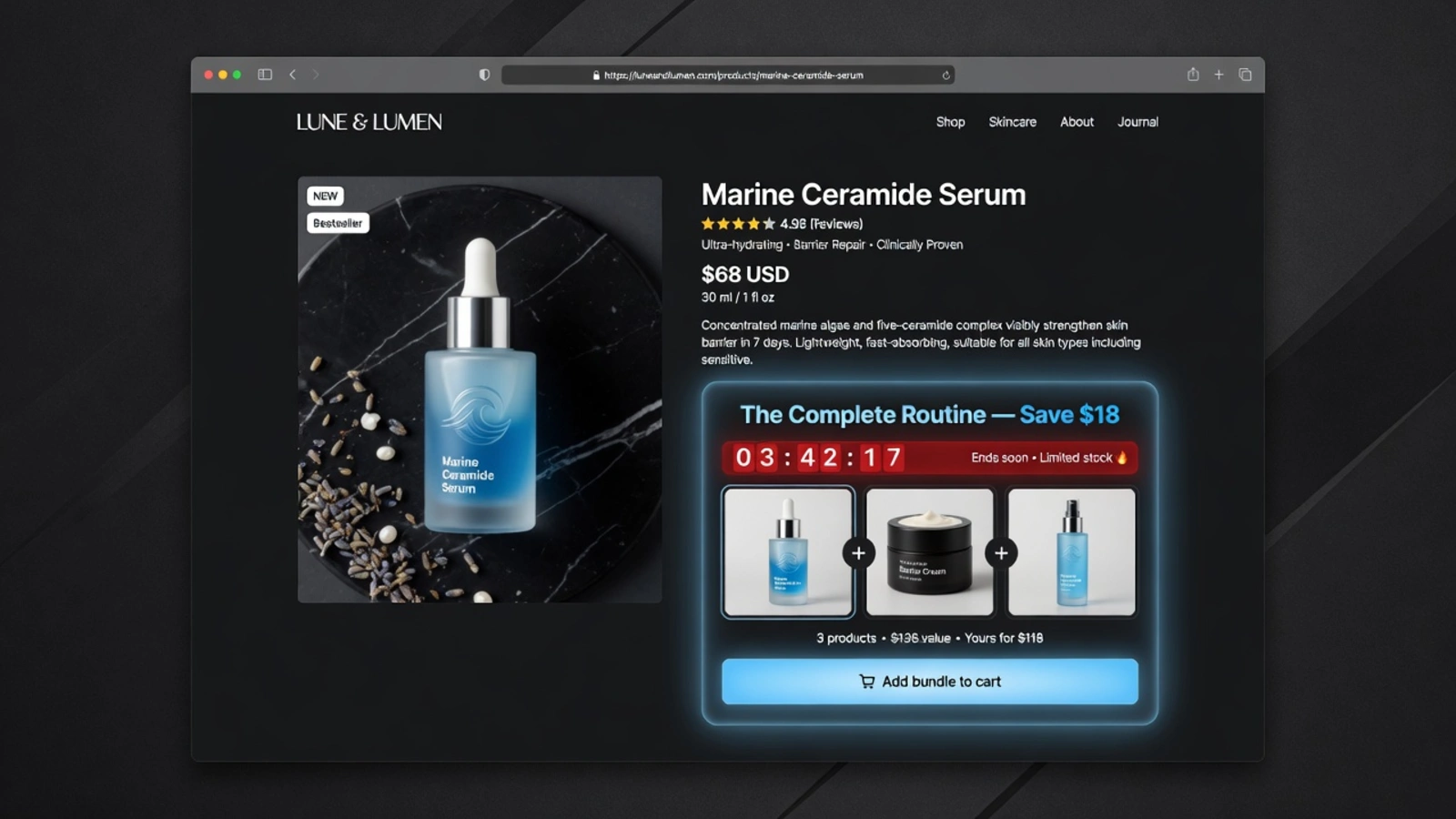
For premium brands, "The Complete Morning Routine — Save 15%" converts better than "15% Off: Cleanser + Toner + Moisturizer Bundle." Leading with the outcome name (The Complete Morning Routine) primes aspiration; the discount is the supporting incentive. For value-positioned brands, invert this — lead with the saving if price is the primary driver.
3. Use action-oriented CTA language
"Add bundle to cart" outperforms "Buy together" because it mirrors the action the customer is taking (adding to cart) rather than implying a new decision (buying). "Get the set" works well for gift-adjacent bundles. "Claim the bundle deal" adds an ownership frame. Avoid passive CTAs like "Bundle available" or "View bundle" — these describe a feature, not an action.
4. Display product thumbnails
Visual product images in the bundle widget reduce cognitive load — customers can see what they're getting without reading product names. EZBundle's admin preview shows real product images from your catalog. Well-designed bundle widgets show 2–4 small product thumbnails alongside the combined price, creating a compact, scannable value proposition.
5. Specificity beats vagueness
"Save $18 on the 3-piece Morning Routine" beats "Bundle and save." Specific numbers (the exact saving) and specific quantities ("3-piece") are more credible and more motivating than generic bundle messaging. If your bundle saves the customer $18.50, round to $18 (not "save on your order" or "save with bundle") and say it explicitly.
Creating urgency around bundle offers
Urgency is the single highest-leverage add-on to a bundle offer. A static bundle discount is a deal; a time-limited bundle discount is an opportunity that requires a decision. The conversion difference between the two is significant — CXL research on urgency in ecommerce shows 15–30% conversion uplift from a genuine countdown timer versus a static equivalent offer.
Countdown timers
PopBoost's countdown timer is the right tool for this. Add a countdown timer block above or directly adjacent to the bundle widget in your theme editor. Set the end time to match when your bundle discount expires (e.g., "Bundle sale ends Sunday at midnight"). The timer shows a live countdown in hours, minutes, and seconds.
For evergreen bundles with no real end date, use a rolling timer (resets every 24–48 hours) to create a persistent sense of urgency. The psychological effect is similar even when customers know the reset is artificial — the visible countdown creates a sense of time pressure that static pricing does not.
Social proof popups
PopBoost's social proof popup adds a second urgency signal: "Sarah from Austin just bought The Morning Routine Bundle — 3 hours ago." This tells the visiting customer three things simultaneously: the bundle is popular (social proof), other customers found it worth buying (peer validation), and it's selling (implied scarcity). The combination of bundle offer + countdown timer + social proof popup creates a conversion environment that is demonstrably more effective than a bundle offer alone.
Stock-based urgency for bundle components
If any product in the bundle is genuinely low on inventory, a stock countdown ("Only 7 of the Toner remaining — bundle while you can") adds authentic scarcity. PopBoost's stock countdown widget reads real Shopify inventory levels and displays them accurately — not fabricated scarcity. This pairing is particularly effective for limited-edition or seasonal bundles where the components are genuinely finite.
How EZBundle's storefront widget serves the offer
Understanding how the widget works technically helps you configure it for maximum conversion. Here's the full customer-facing flow:
- Page load: EZBundle's Liquid app block reads the product's collection GIDs from Shopify's storefront context
- Proxy call: The block's JavaScript calls
/apps/ezbundle/bundle?product_id=...&shop=...&collection_ids=...— EZBundle's app proxy endpoint - Bundle matching: The proxy checks for active fixed bundles containing this product, then for active M&M bundles covering the collection GIDs. Returns the best match (fixed takes priority over M&M when both apply)
- Widget render: The widget renders with the bundle name, included product thumbnails, regular price, bundle price, savings callout, and "Add bundle to cart" button
- Add to cart: When clicked, all bundle products are added to the cart via Shopify's storefront API
- Discount application: Browser navigates to
/discount/EZB-{id}-{suffix}?redirect=/cart, which sets a session cookie activating the discount code - Checkout: The discount applies automatically at the Shopify checkout — no customer action needed
The proxy response is cached with max-age=10 — a 10-second cache that prevents redundant server calls during high-traffic periods while staying fresh enough to reflect bundle status changes quickly.
Mobile optimization for bundle widgets
More than 60% of Shopify traffic in 2026 comes from mobile devices. Bundle widgets that look great on desktop often have display issues on small screens — truncated product names, overlapping price elements, or buttons that are too small to tap comfortably.
Key mobile considerations for bundle widgets:
- Tap target size: The "Add bundle to cart" button must be at least 44×44px (Apple's minimum tap target recommendation). Smaller buttons on mobile cause mis-taps and frustration.
- Stacked layout: On screens under 400px wide, bundle product thumbnails should stack vertically or reduce to icons rather than trying to fit 3–4 product images horizontally.
- Price clarity: The bundle price and saving should be the largest text elements in the widget on mobile — not the product list. Mobile users scan for numbers; text-heavy widgets get skipped.
- Scroll position: Placement "below the product description, before add-to-cart" means different things on mobile vs. desktop. On mobile, this section is often below a very long description. Consider how far below the fold your bundle widget appears on mobile — use Shopify's theme editor on a mobile preview to check.
EZBundle's widget uses responsive CSS that adapts to mobile screen widths. Test your bundle widget on a real mobile device after setting it up — browser resize emulation in DevTools does not accurately represent how content flows on physical mobile screens.
A/B test ideas for bundle conversion optimization
Once your bundle is live and getting traffic, these are the highest-impact test variables to experiment with:
Run for 2 weeks, measure the ratio of bundle purchases to product page views. Above add-to-cart typically shows a 30–50% higher engagement rate, but the effect varies by niche and product price point.
"The Complete Skincare Routine — Save $18" vs. "Save $18: Cleanser + Toner + Moisturizer." Test which framing drives more bundle adds to cart over 2 weeks. Outcome names typically win for premium brands; value names win for price-sensitive segments.
Run each discount level for 1 week minimum. Measure bundle attach rate (bundle purchases / product page views). The incremental attach rate from 10%→15% and 15%→20% tells you whether deeper discounts are buying you customers or just giving margin away to customers who would have bundled at 10% anyway.
Enable PopBoost countdown timer on bundle offer for 1 week, disable for 1 week (or test on separate products). Measure conversion rate change. Typically 15–25% improvement with timer.
Small copy changes on CTAs can produce 5–15% conversion differences with minimal implementation cost. Run for 2 weeks per variant.
The complete high-converting bundle setup
Based on everything covered in this guide, the highest-converting bundle implementation for a Shopify product page combines:
- EZBundle widget placed below product description, before add-to-cart — showing outcome-named bundle, explicit price comparison, product thumbnails, and action CTA
- PopBoost countdown timer above the bundle widget — showing when the bundle price expires
- PopBoost social proof popup — showing recent bundle purchases by name and location
- PopBoost free shipping bar in the header — showing progress toward the free shipping threshold (which the bundle purchase helps complete)
Each element reinforces the others: the bundle offer provides the deal, the timer creates urgency, the social proof provides peer validation, and the free shipping bar shows the shipping goal is within reach once the bundle is added. A customer who sees all four elements simultaneously has multiple simultaneous reasons to complete the bundle purchase — at that point, the question isn't whether to buy the bundle, but which variant to choose.
Measuring bundle conversion performance
Track bundle performance via Shopify Analytics:
- Discount code report (Shopify Analytics → Discounts): shows how many orders used each EZBundle discount code (
EZB-...), the total discount amount, and the order total. This is your primary bundle revenue attribution metric. - AOV comparison: compare the average order value of orders containing EZBundle discount codes vs. all orders. The difference is your bundle AOV lift.
- Bundle attach rate = bundle orders / product page views × 100. Calculate this per bundle by combining Shopify's discount code data with Analytics session data. Most effective bundles see 5–15% attach rates on their primary product pages.
For stores running multiple bundles across many products, tracking per-bundle performance in aggregate via Shopify's discount reports is the most practical approach. As bundle volume grows, EZStock helps you understand the inventory velocity implications — which bundle components are moving fastest and need earlier reordering.
Frequently asked questions about Shopify bundle upsells
Where should I place a bundle widget on a Shopify product page?
Below the product description, before the add-to-cart button. This captures customers at peak purchase intent — they've evaluated the product and are deciding. Conversion rates are typically 40–60% higher than below the add-to-cart button. Never place below product reviews — few customers scroll that far.
What copy converts best for Shopify bundle upsells?
Show the math explicitly (regular total vs. bundle price vs. dollar saving). Lead with an outcome-based bundle name. Use action CTA language ("Add bundle to cart"). Include product thumbnails for visual clarity. Be specific — "$18 saved" beats "save on your order."
How do I create urgency around a Shopify bundle offer?
Add a PopBoost countdown timer above or adjacent to the EZBundle widget, showing when the bundle discount expires. Combine with a social proof popup showing recent bundle purchases. The timer + social proof combination typically lifts bundle conversion by 15–30% over a static bundle offer alone.
What is the difference between a bundle upsell and a cross-sell?
A bundle upsell upgrades a single-item purchase to a multi-item purchase with a discount incentive. A cross-sell suggests an additional product without a discount. Bundle upsells outperform cross-sells for AOV lift because the discount creates a reason to act. Use bundles when you want cart value; use cross-sells when you want category discovery.
How does EZBundle's storefront widget work?
EZBundle's widget is a Theme App Extension (Liquid app block + vanilla JS). On page load, it reads the product's collection GIDs and calls the EZBundle proxy endpoint. The proxy returns the matching bundle data. The widget renders with the offer, and clicking "Add bundle to cart" adds all products and applies the discount via a /discount/CODE?redirect=/cart URL. The whole flow is natively Shopify — no custom checkout, no special setup.
For bundle setup fundamentals, see the complete Shopify product bundle guide. For discount pricing, see Shopify Bundle Discount: How to Use Buy More Save More Without Hurting Margins. For niche-specific bundle type selection, see Product Bundle Strategy for Shopify. For the full CRO toolkit that amplifies everything bundles do, visit PopBoost — countdown timers, social proof popups, stock countdowns, and free shipping bars as a single Theme App Extension.