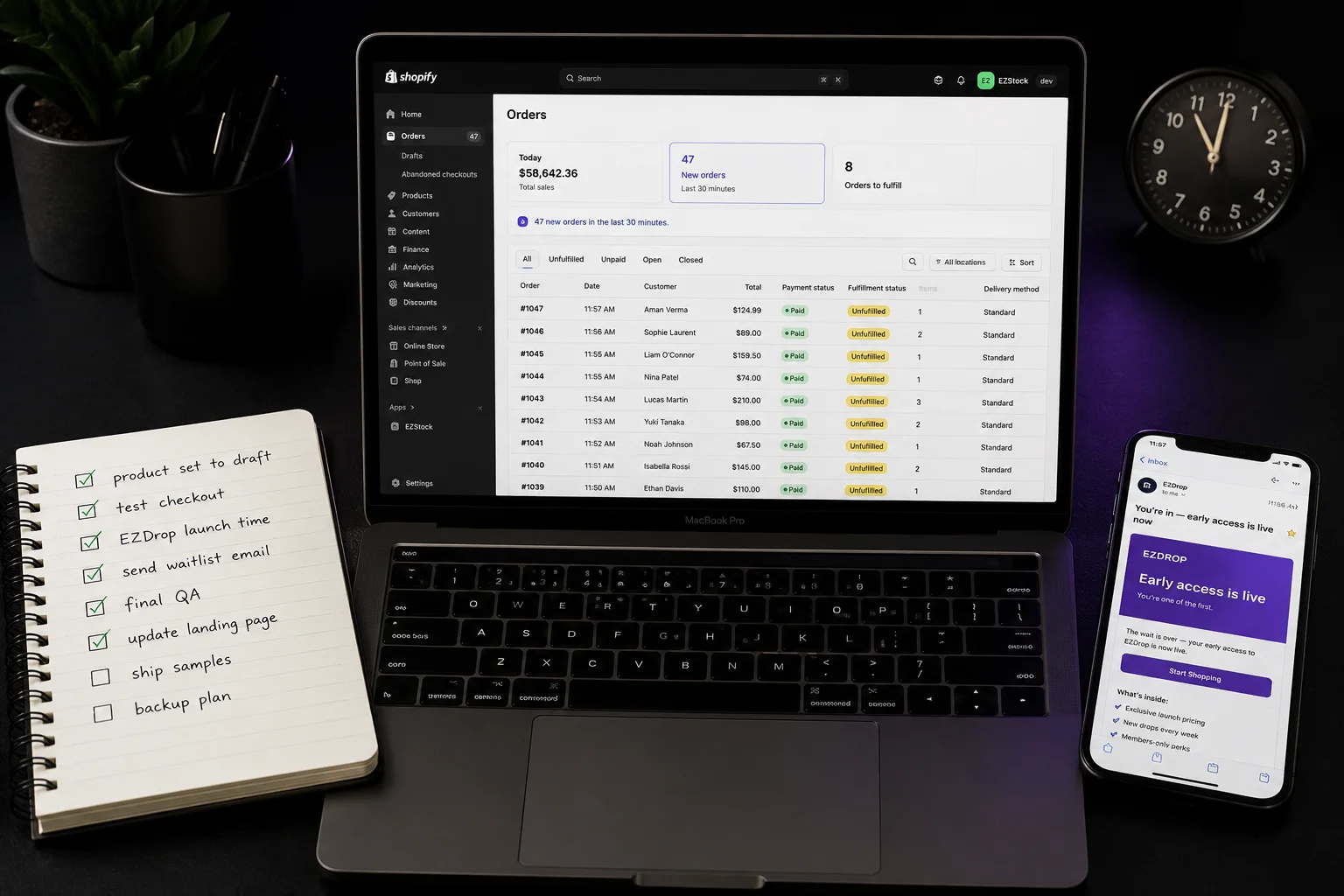
T-24: The Day Before
The day before is your last opportunity to fix anything without pressure. After this, you are in execution mode — not problem-solving mode. Use this day to verify everything that can silently fail on launch day.
- Product page is in draft or behind a password. Do not publish yet. Confirm the URL is the one you'll link to in launch emails.
- Inventory quantity is set correctly. Shopify's "continue selling when out of stock" setting must be OFF unless you're doing pre-orders. If you set it wrong, you'll oversell.
- All variants are set up. Sizes, colors, bundles — check each variant has the right price, SKU, and inventory count. Missing variants are a common launch day scramble.
- Product images load fast. Hero image should be under 200KB. Run the product URL through PageSpeed Insights in preview mode to catch any image weight issues before traffic hits.
- Shipping is configured correctly. The product's shipping profile covers your intended markets. Test by adding to cart and proceeding through checkout to the shipping step.
- Do a complete test purchase — add the product, apply any discount code, select shipping, enter payment, complete purchase. Then immediately refund it. Do this in an incognito window as if you're a new customer.
- Discount codes work. If you're giving waitlist members a code, test it against all your products and variants. Codes that work on some variants but not others are a silent conversion killer.
- Order confirmation email looks correct. Check the subject line, product name, image, and shipping estimate. Shopify's default emails sometimes show placeholder text if you haven't set up your brand correctly.
- Checkout is not in test mode. Shopify's test payment gateway is still on for some stores even in production. Go to Settings → Payments and confirm you're using a live payment processor.
- Launch time is set in EZDrop dashboard. Confirm the timezone is correct. A launch set to 12pm UTC instead of 12pm EST sends your notification 5 hours early to EST subscribers.
- The product linked to your drop is the correct variant/product GID. Check the drop settings — a wrong product link sends launch emails pointing to a 404.
- Send the 48-hour warning email. This is email #3 in your Klaviyo sequence (or a manual send). Include the exact launch time with timezone, their queue position reminder, and a final referral push.
- Notify batch size is set appropriately. EZDrop's default is 50 — it sends launch notifications to the top 50 subscribers first, then the rest after they've had a window. Adjust this based on your inventory. If you have 200 units, notify top 200 immediately.
Do not make any theme changes in the 24 hours before launch. Every theme edit triggers Shopify's asset pipeline. During high-traffic launch moments, an in-progress asset compile can cause the storefront to return errors for 5–15 minutes. This is the single most common self-inflicted launch disaster.
T-1 Hour: Final Checks
One hour before launch, stop making changes. Your job now is to verify, not improve. Open a browser tab for every system you'll be monitoring.
- Shopify admin → Orders is open and ready to monitor. You'll watch this in real time once the drop goes live.
- EZDrop dashboard is open. You'll see the signup count and launch trigger here.
- Klaviyo → Campaigns (or Flows) shows your launch email in "scheduled" or ready-to-send state.
- Your product page URL loads correctly in an incognito window. If it's still in draft, you'll see a 404 or blank page — which is correct for now. Just confirm the URL is right.
- Your social media posts are drafted and ready to copy-paste. You should not be writing launch copy at T-0. Have it pre-written: Instagram caption, X/Twitter post, any Discord or community announcement.
- Customer support is aware. Even if it's just you — know what your policy is for: customers who couldn't complete checkout, customers who got skipped in the queue notification, discount codes that didn't apply.
Launch Moment: Go-Live
At your planned launch time, execute in this exact order. Sequence matters — your waitlist should always get access before the public.
First Hour: Monitor
The first hour is the most critical revenue window. Most drops capture 50–70% of total launch-day revenue in the first 60 minutes. Stay at your computer. Watch these four things:
- Shopify Orders — orders coming in. If you get traffic but no orders within 10 minutes of your first batch of launch emails, something is broken in checkout. Test it immediately.
- EZDrop dashboard — notification delivery. Confirm the launch emails are going out in batches. If the notification count is stuck, check your Klaviyo flow or the EZDrop webhook.
- Klaviyo — email delivery rate. Open rate in the first 30 minutes should be climbing. If you sent to 500 people and show 0 opens after 15 minutes, the send may have errored.
- Inventory count in Shopify. If you have limited stock, watch this. When it hits zero, decide: stop sales (change inventory policy to "don't sell when out of stock") or allow pre-orders with a note on the page.
If checkout breaks mid-launch: Don't panic. Put the product back in draft mode temporarily, fix the issue (usually a shipping zone or discount code config), then re-publish and send a quick "we're back" email to your list. Customers who were already trying to buy will come back if you communicate clearly. Silence during a broken checkout loses them permanently.
T+24 to T+48: Post-Launch
The launch window doesn't end at launch. The 48 hours after your drop are where you recover non-purchasers and extract the remaining conversion potential from your waitlist.
- Send email #5 in your launch sequence — the follow-up to waitlist members who opened the launch email but didn't purchase. In Klaviyo, suppress anyone who placed an order since launch.
- Include a real inventory update. "We launched with 150 units — 94 are gone. Here's what's left." Real numbers convert better than vague urgency.
- If inventory is sold out, offer a restock waitlist. EZDrop supports a "notify me" state for closed drops. Capture restock interest now while the product is top of mind.
- Calculate waitlist-to-purchase rate: total orders from waitlist subscribers ÷ total waitlist signups. Target: 20–30%. Below 15% means the launch email or product-page checkout flow needs work.
- Check referral rate in EZDrop. What percentage of subscribers referred at least one person? Below 10% means the referral incentive (queue position) isn't motivating enough — consider increasing the points per referral for your next drop.
- Note what broke. Write down every technical issue during the launch, how long it lasted, and what you did to fix it. This becomes your "never again" list for the next drop.
- Export the order list and tag waitlist buyers in Shopify as a customer segment. These are your highest-value customers — they should get VIP early access to future drops by default.
Common Mistakes That Kill Conversions
These are the issues that show up most often in failed drops — not strategic problems, but execution gaps:
- Publishing the product before sending the waitlist email. Bots and fans who are checking your store will find the product and buy before your waitlist has been notified. This destroys the trust your waitlist members had in the queue mechanic.
- Wrong timezone on launch time. EZDrop's launch time setting and your Klaviyo scheduled send must be in the same timezone. A 5-hour mismatch means your email arrives after the product has been public for 5 hours.
- Overselling due to "continue selling when out of stock." If you leave this on and sell out, you'll be manually processing refunds for oversold orders. Turn it off before launch unless you have a clear pre-order policy communicated on the product page.
- Not testing the discount code. Waitlist-exclusive discount codes break in three common ways: wrong expiry date set to before launch day, code is case-sensitive and customers type it wrong, or the code is limited to one use per customer but you've accidentally set it to one use total.
- Making theme edits in the hour before launch. Even a small CSS change can trigger a theme publish that takes 10–20 minutes to compile under load. The storefront can return stale or broken HTML during this window.
EZDrop handles the waitlist — you handle the checklist
Viral referral queue, position tracking, automatic launch notifications in batch order, and Klaviyo/Zapier integration. Free to install — set up your next drop today.
Install EZDrop Free on Shopify →Or learn more at ezdrop.app — the Shopify waitlist app
| Target Audience | Best Launch Time (ET) | Best Launch Time (PT) |
|---|---|---|
| US-only audience | 9:00 AM ET (Tue–Thu) | 6:00 AM PT (avoid early PT) |
| US + Canada | 10:00 AM ET | 7:00 AM PT |
| US + UK / EU | 3:00 PM ET / 8:00 PM GMT | 12:00 PM PT |
| Global audience | 12:00 PM ET | 9:00 AM PT |
| Flash drop (urgency-first) | Any time, announce 15 min prior | Same |
| Weekend drops | Saturday 10 AM ET | Saturday 7 AM PT |
| Item | Why It Matters |
|---|---|
| Freeze theme edits 24h before | Theme compiles take 2–6 hours; edits can break live storefront |
| Test checkout end-to-end | 15% of carts fail silently on launch day due to untested discount codes |
| Pre-schedule waitlist email in EZDrop | Manual sends on launch day = delays; pre-schedule night before |
| Confirm product variant availability | Sold-out variants on launch = immediate refund requests |
| Set EZDrop drop status to "Live" | App block won't show unless status is explicitly set |
| Enable EZDrop app block in theme editor | Block must be active in the theme before launch |
| Have customer support copy ready | 30–40% of launch-day contacts are "where's my access?" questions |